Babbage is a notepad calculator. You type lines of plain language and numbers, and the answer to each line appears beside it. There is no equals key and no mode to switch: write what you mean and read the result.
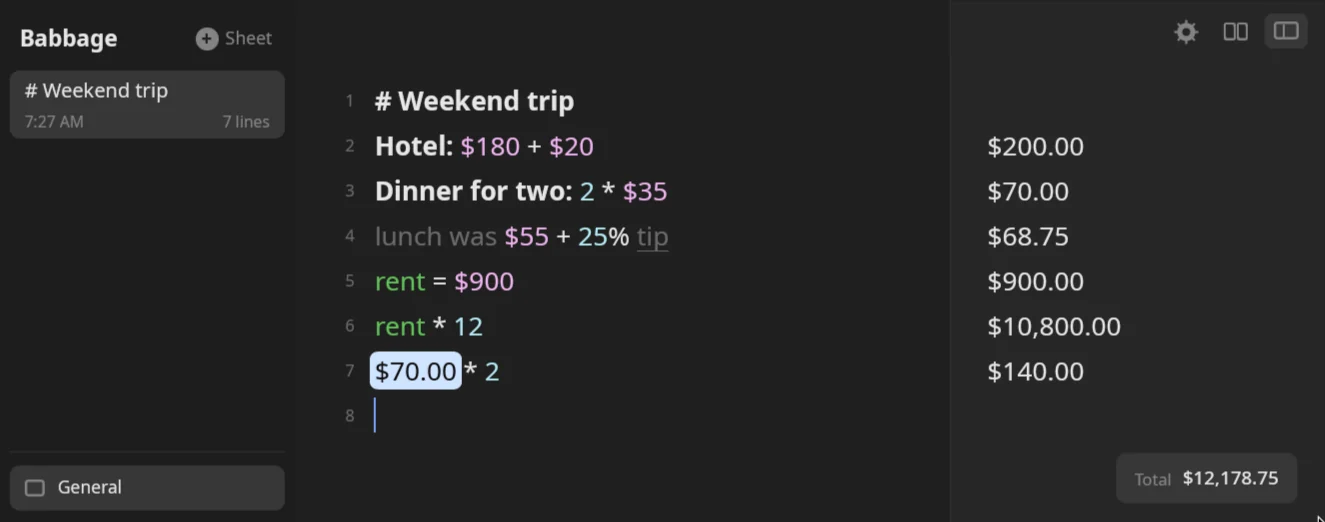
This chapter gets Babbage onto your machine, shows you the window, and walks you through your first five minutes.
Install
One line installs Babbage for your user, with no administrator rights needed:
curl -fsSL https://github.com/jrimmer/babbage/releases/latest/download/install.sh | bash
The installer keeps the program in ~/.local/share/babbage and adds two commands to ~/.local/bin: babbage,
which opens the window, and bbg, which answers from the command line (see
The command line). Each file it downloads is checked against its published .sha256 file
before anything is installed. Run the same line again to update to the newest release.
The installer also adds Babbage to your app launcher (a launcher entry and an icon, one file each, under ~/.local/share) and sets up tab completion for bbg in bash, and in fish when you use fish. It never replaces a file of those names that it did not write.
To take the tarball rather than the AppImage, add --tarball after bash -s --. To remove Babbage, run the line
with --uninstall in the same place. Only the files the installer made are removed.
If ~/.local/bin is not on your PATH, the installer says so. Add that folder to your shell's PATH to run
babbage and bbg by name.
Download by hand
Babbage is released as two downloads. Pick one.
| File | Best for |
|---|---|
*.AppImage |
One file you download, mark as runnable and start. Nothing else to set up. |
*.tar.gz |
A folder you unpack under your home directory. |
Each file is published with a .sha256 file beside it. The checksum is optional for a first install, but it is
a quick way to see that the download is whole:
sha256sum -c babbage-x86_64.AppImage.sha256
From an AppImage
- Download the
.AppImagefile and put it somewhere you keep programs, for example~/Apps. - Mark it as runnable:
``
chmod +x ~/Apps/babbage-x86_64.AppImage
- Start it by double-clicking it in your file manager, or from a terminal:
``
~/Apps/babbage-x86_64.AppImage
When an update is installed later, the AppImage file is replaced in place. You do not need administrator rights.
From a tarball
- Download the
.tar.gzfile. - Unpack it into a folder under your home directory, for example
~/Apps/babbage. - Start the
babbageprogram inside that folder.
A tarball install updates itself inside the same folder, so keep the folder somewhere you own. If you put it somewhere that needs administrator rights, updates cannot replace it.
Your exact file names will carry the version number and your machine's architecture. Download the one for your machine.
Check that it runs
babbage --version prints the version and babbage --help prints the usage. Run either from a
terminal if you want to confirm the install before opening the window.
First launch
Babbage opens a window 1200 by 800 points, in the middle of the screen. The first time, you get one empty sheet with the caret already in it. Start typing.
Your sheets are saved for you as you type, about 0.4 seconds after you pause. There is no Save command. They are
plain text files in ~/.local/share/babbage/sheets. Your settings live in ~/.config/babbage/settings. See
Sheets and files for the details.
Babbage follows your desktop theme when it runs on Omarchy, light or dark, and otherwise follows your system's light or dark setting. See Settings.
Quick calculations from anywhere
babbage --quick opens a small window for one calculation. If a Babbage window is already open on Hyprland, it brings that window forward instead of opening a second, so you can bind it to a key and press it as often as you like. The launcher entry has the same thing as an action: Quick calculation.
On Omarchy, one command sets the key up:
babbage setup omarchy
It binds SUPER + ALT + C to babbage --quick, makes the quick window float in the middle of the screen, and adds a Babbage section to the Omarchy menu (Super+Space) with Quick Calculation and Open Babbage. Choose another key with --key "SUPER + SHIFT + K". If the key is already bound to something, the command says what and stops; it never takes a key from you.
Everything it adds is in files of its own: ~/.config/hypr/babbage.lua, one marked line in ~/.config/hypr/hyprland.lua that loads it, and a marked block in ~/.config/omarchy/extensions/omarchy-menu.jsonc. Each file is backed up first (as .bak with a timestamp), and Hyprland's configuration is checked afterwards with hyprctl configerrors. If the check finds an error that the change caused, every file is put back as it was. To undo it all:
babbage setup omarchy --remove
On any other desktop, bind a key to babbage --quick in your desktop's keyboard settings.
The window
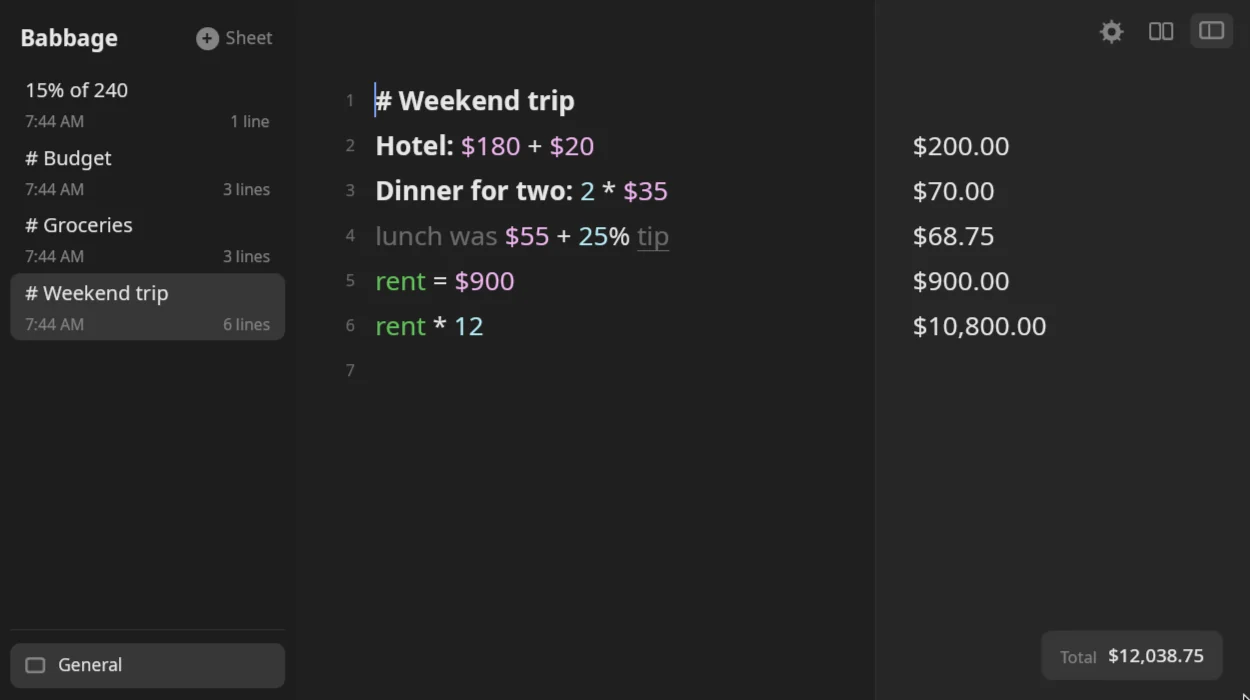
The window has three parts side by side.
| Part | What it holds |
|---|---|
| Sidebar (left) | A + Sheet button, then one card per sheet showing its title, when it last changed and how many lines it has. The open sheet is highlighted. |
| Sheet (middle) | The place you type. Line numbers run down the left edge, and your text sits beside them. |
| Answers column (right) | The answer to each line, level with the line it belongs to. At its top are three buttons: Settings, Help and the sidebar toggle. |
A small Total chip floats at the bottom right of the answers column. It adds up the amounts at the bottom of the sheet for you. If lines above them are a different kind, say a length among prices, the chip says how many it did not add. See Variables and totals.
The three buttons
- Settings opens the settings panel. See Settings.
- Help opens a short list of the keys and a few things to type. It is a quick reminder; the full list is in The keyboard.
- The sidebar button hides or shows the sidebar. Ctrl+B does the same.
Click a button again, or press Esc, to close its panel.
The sidebar
A sheet's name is its first line of text until you rename it. Click a card to open that sheet. Press Ctrl+N or click + Sheet to start a new one. Ctrl+Tab and Ctrl+Shift+Tab step to the next and previous sheet.
Your first five minutes
Try these in order on the empty sheet. Press Enter after each line.
- Type a sum. Write
12 + 12 * 15. The answer,192, appears on the right as soon as the line makes sense. Words work too:12 plus 3gives15. - Add a heading. Begin a line with
#and a space:# Weekend trip. It becomes a heading. Because it is the first line, it is also the name on the sidebar card. - Add money. Write
Hotel: $180 + $20. TheHotel:part is a label. The answer is$200.00. - Write around the numbers.
lunch was $55 + 25% tipgives$68.75. The words Babbage does not need are shown dimmer. See The basics. - Name a value.
rent = $900, then on the next linerent * 12. The second line answers$10,800.00. - Point at an earlier line. On a later line, write
line3 * 2. That multiplies the answer of line 3. - Look at the Total chip, then try Ctrl+Z to undo and Ctrl+Shift+Z to redo.
- Make it your own. Open Settings and look around. Everything there takes effect straight away.
You can close the window with Ctrl+Q. Everything you typed is already saved, and the same sheet is there next time.
Where to go next
- The basics: how lines, headings, comments, labels and skipped words work.
- Numbers and percentages, Units and Money: what you can calculate.
- Variables and totals: naming values and adding up a sheet.
- Answers and formats: copy an answer or change how it is written.
- The keyboard: every shortcut.