Every setting lives in one window, in eight panes. Each control takes effect the moment you change it and is written to a small settings file, so there is no Save button and nothing to restart.
Open the window with the gear button at the right end of the toolbar above the sheet (next to the help button and the sidebar button). Click the gear again, or press Escape when no text box is being edited, to close it. The panes are listed down the left; click one to see its settings.
How the controls work
| Control | How to use it |
|---|---|
| Switch | Click it to turn the setting on or off |
| Row of choices | Click the one you want; the chosen one is filled in |
| Stepper | Click − or +; the value is shown between them, with its unit |
| Text field | Click it, type, then press Enter to keep the text. Pressing Escape cancels that edit, keeps the old value and leaves the window open. Entering nothing and pressing Enter clears the setting |
| Color swatches | Click a color, or Default to go back to the built-in one |
| Button | Click it to do something (the only one is Check now) |
If a setting cannot be saved, the notice at the bottom of the sidebar says why.
General
| Setting | Choices | Default | What it does |
|---|---|---|---|
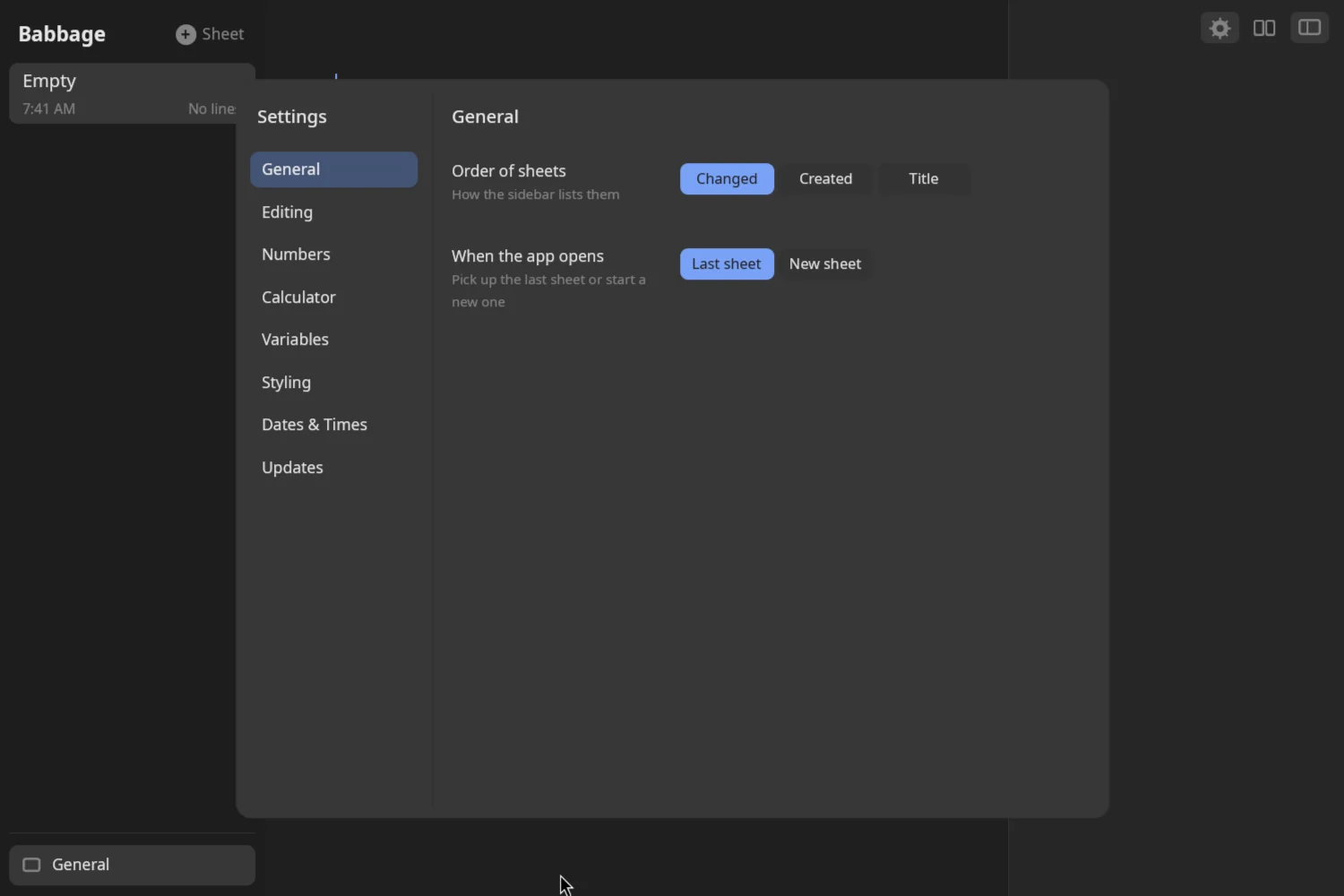
| Order of sheets | Changed, Created, Title | Changed | How the sidebar lists your sheets: most recently changed first, newest made first, or alphabetical |
| When the app opens | Last sheet, New sheet | Last sheet | Start on the sheet you used last, or on a fresh empty one |
See Sheets and files for more on the sidebar.
Editing
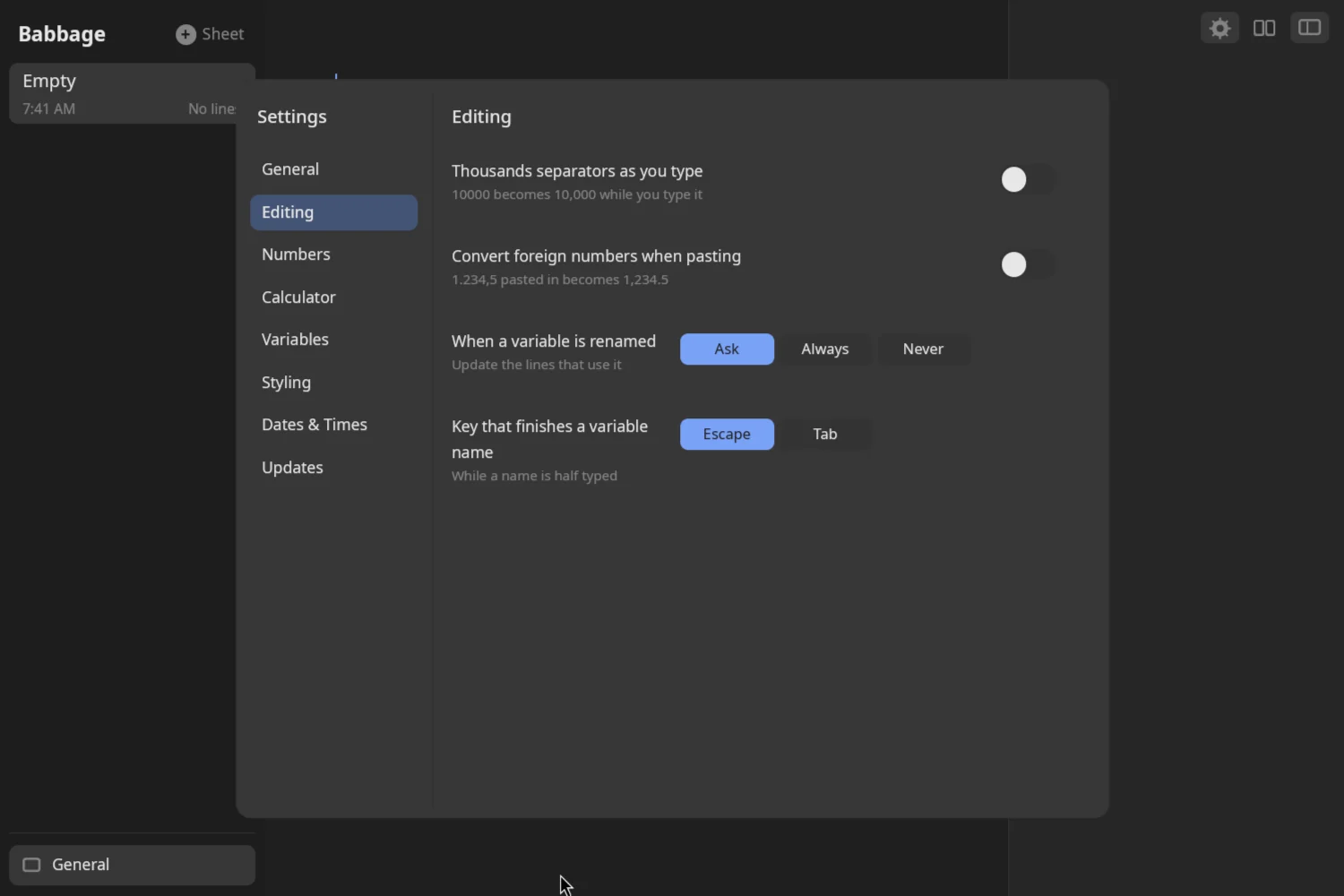
| Setting | Choices | Default | What it does |
|---|---|---|---|
| Thousands separators as you type | On, Off | Off | 10000 becomes 10,000 while you type it |
| Convert foreign numbers when pasting | On, Off | Off | A number pasted in another region's style, such as 1.234,5, becomes 1,234.5 in the style you use |
| When a variable is renamed | Ask, Always, Never | Ask | What happens to later lines that use a variable when you change its name on the line that defines it. Ask shows a small offer to update them; Always updates them; Never leaves them alone |
| Key that finishes a variable name | Escape, Tab | Escape | While a variable name is half typed, the key that accepts the suggested completion |
Numbers
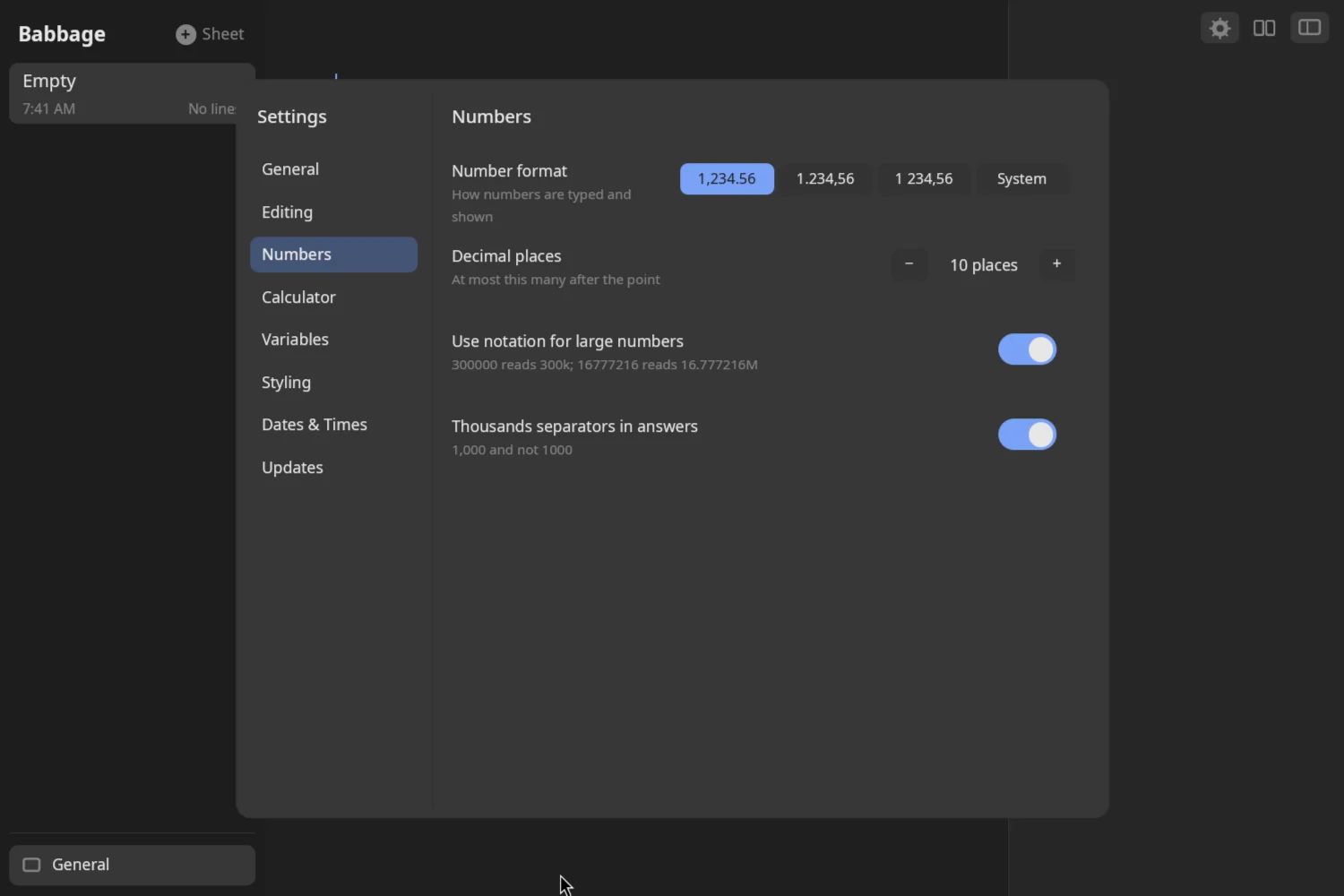
| Setting | Choices | Default | What it does |
|---|---|---|---|
| Number format | 1,234.56, 1.234,56, 1 234,56, System | 1,234.56 | How numbers are typed and shown: the grouping mark and the decimal mark |
| Decimal places | 0 to 10 | 10 | The most places an answer shows after the point |
| Use notation for large numbers | On, Off | On | 300000 reads 300k and 16777216 reads 16.777216M |
| Thousands separators in answers | On, Off | On | 1,000 and not 1000 |
The three number formats are North American style (1,234.56), Western European (1.234,56) and Eastern European, where a space groups the thousands and either a comma or a point is read as the decimal mark (1 234,56). The default is 1,234.56 on every machine, so a sheet reads the same wherever it is opened. System follows the session's locale, read from LC_ALL, then LC_NUMERIC, then LANG. German, Spanish, Italian, Portuguese, Dutch and some other languages use 1.234,56. French, the Slavic and Nordic languages and some others use 1 234,56. Anything else uses 1,234.56.
Any of these can be overridden for a single answer from the answer's ⋯ menu; see Answers and formats.
Calculator
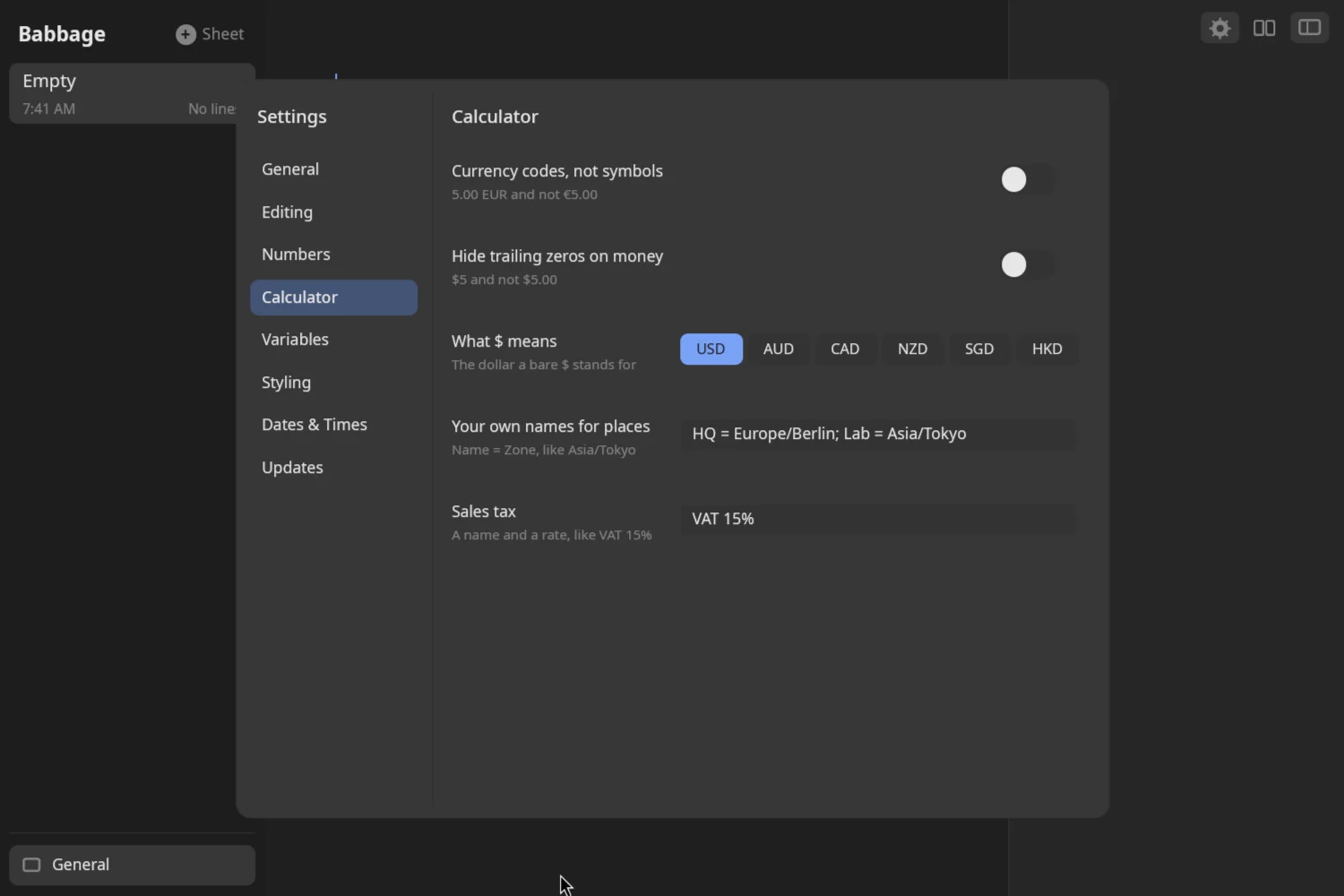
| Setting | Choices | Default | What it does |
|---|---|---|---|
| Currency codes, not symbols | On, Off | Off | 5.00 EUR and not €5.00 |
| Hide trailing zeros on money | On, Off | Off | $5 and not $5.00 |
| What $ means | USD, AUD, CAD, NZD, SGD, HKD | USD | The dollar a bare $ stands for |
| Your own names for places | Text | empty | Names for time zones, written Name = Zone and separated by ;, for example HQ = Europe/Berlin; Lab = Asia/Tokyo |
| Sales tax | Text | empty | A name and a rate, such as VAT 15%, that your lines can then use by name |
For how these show up in your sheets, see Money and Dates and times.
Two details about the text fields. A tax needs a name made only of letters, followed by a rate from 0 to 100 (the % sign is optional); text that does not fit that pattern is ignored. In the places field, a name is ignored unless the zone after the = is a real zone name.
Variables
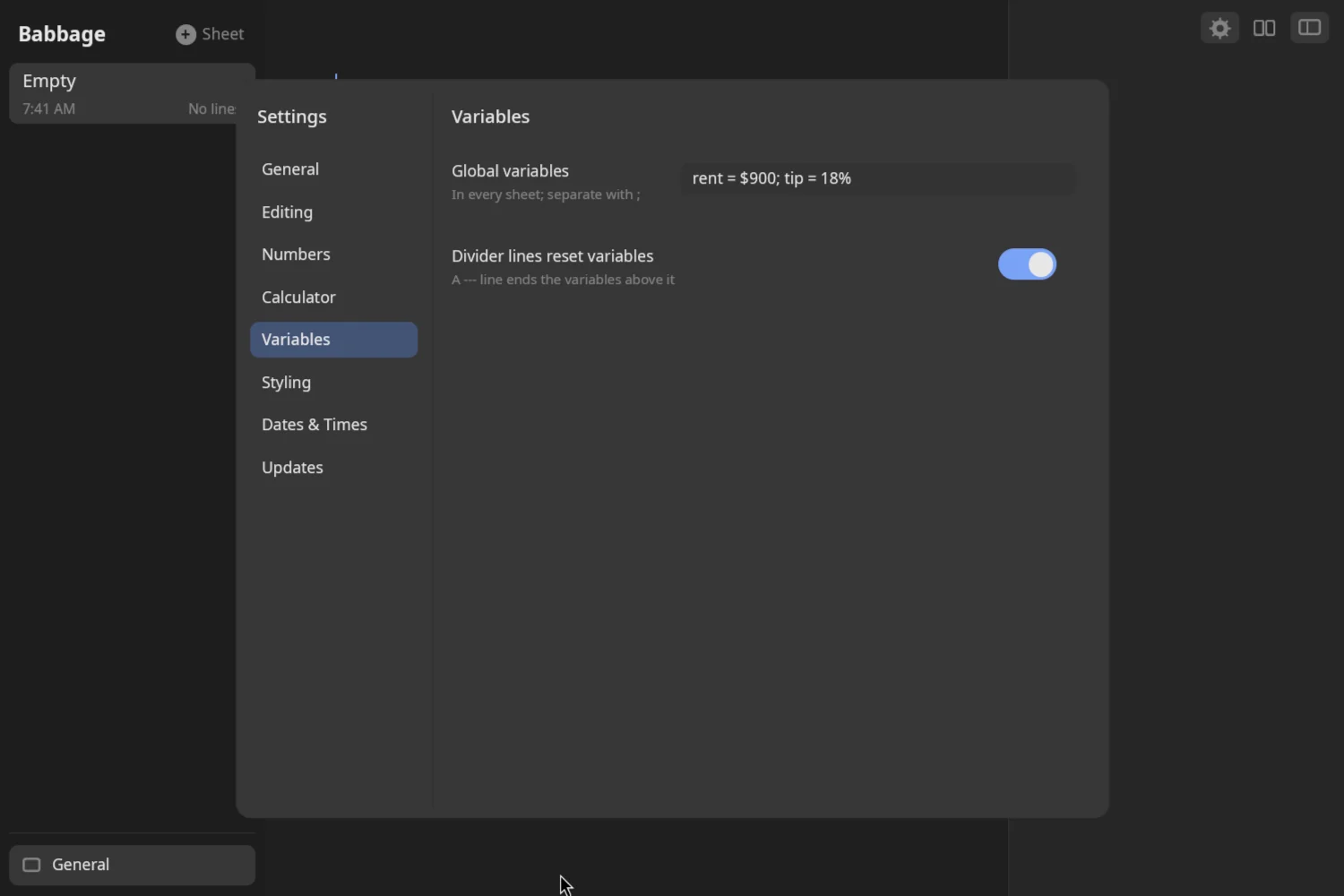
| Setting | Choices | Default | What it does |
|---|---|---|---|
| Global variables | Text | empty | Variables that exist in every sheet, written as ordinary lines and separated by ;, for example rent = $900; tip = 18% |
| Divider lines reset variables | On, Off | On | A divider line (---) ends the variables above it, so each part of a sheet starts clean |
See Variables and totals for how variables and dividers behave.
Styling
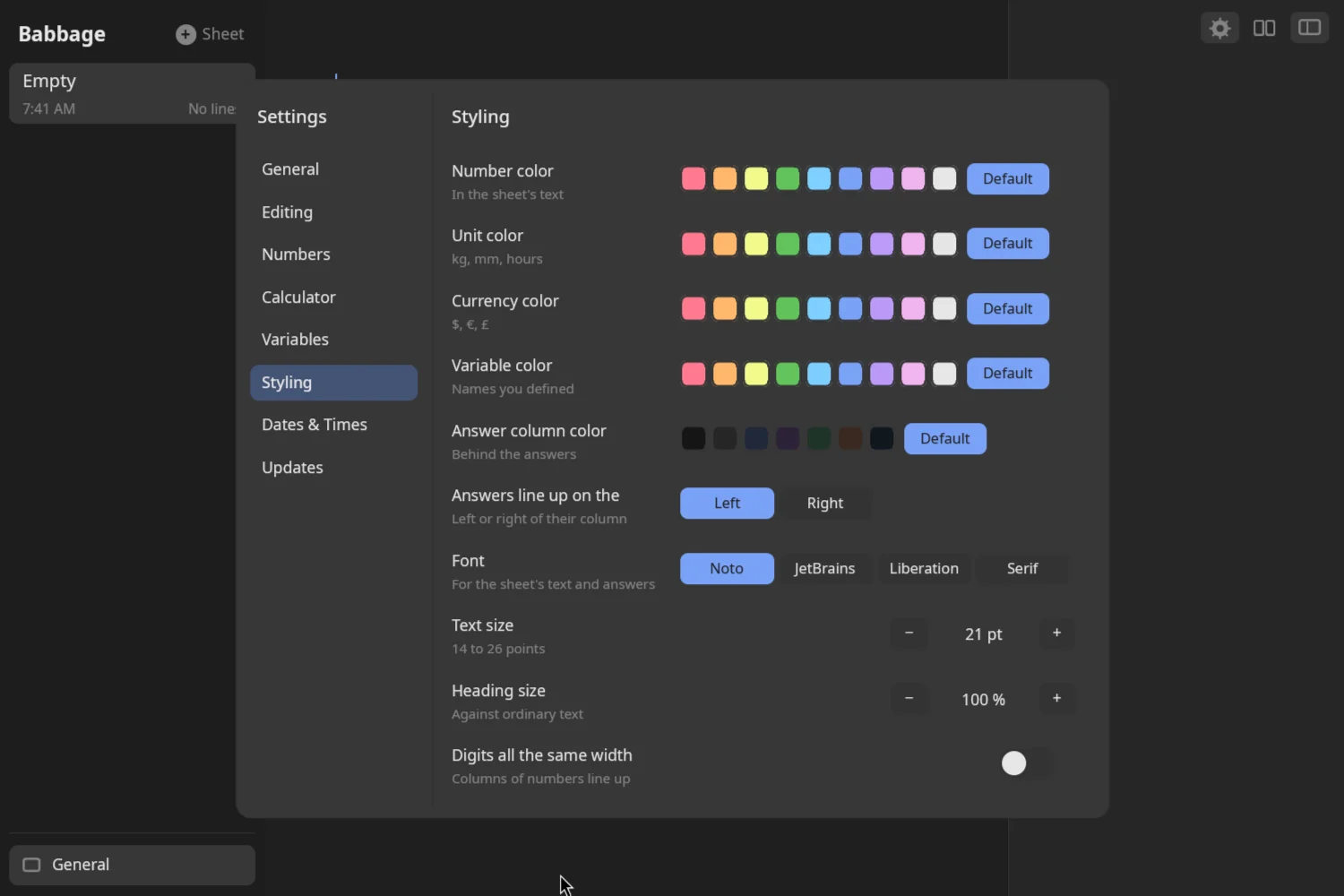
| Setting | Choices | Default | What it does |
|---|---|---|---|
| Number color | nine colors, or Default | Default | The color of numbers in the sheet's text |
| Unit color | nine colors, or Default | Default | The color of units such as kg, mm, hours |
| Currency color | nine colors, or Default | Default | The color of $, €, £ and other money |
| Variable color | nine colors, or Default | Default | The color of names you defined |
| Answer column color | seven dark colors, or Default | Default | The background behind the answers |
| Answers line up on the | Left, Right | Left | Whether answers sit against the left or the right of their column |
| Font | Noto, JetBrains, Liberation, Serif | Noto | The font for the sheet's text and answers: Noto Sans, JetBrainsMono Nerd Font, Liberation Sans or Liberation Serif. |
| Text size | 14 to 26 pt | 21 pt | The size of the sheet's text |
| Heading size | 100% to 160%, in steps of 10 | 100% | How large a heading reads against ordinary text |
| Digits all the same width | On, Off | Off | Every digit takes the same width, so columns of numbers line up |
The rest of the colors (background, sidebar, text and so on) are not settings. They come from your desktop, as described next.
Colors and themes
On Omarchy, Babbage takes its main colors from the current theme (~/.local/state/omarchy/current/theme/colors.toml) and follows it when you switch themes, without restarting. A theme that says mode = "light" gives a light page, and any other a dark one. Whatever the theme's colors are, Babbage keeps text readable: a color that would be hard to read on the page is darkened or lightened until it is not.
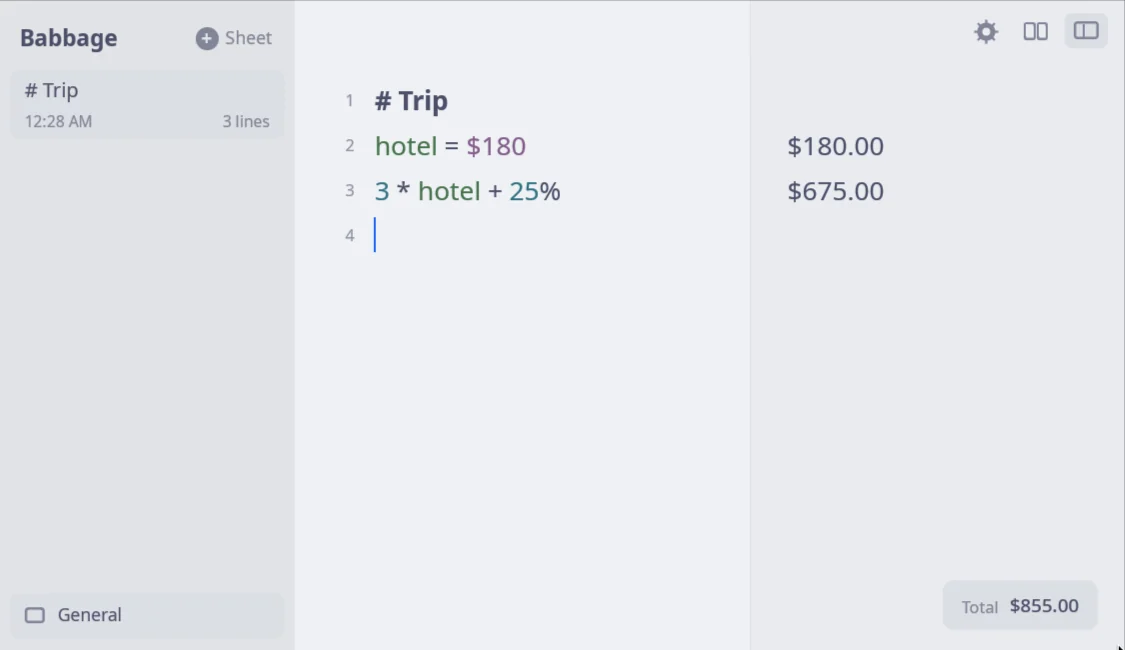
Without an Omarchy theme, Babbage draws its own dark or light colors to match the light or dark setting of your desktop, and follows it when you change it. To choose for yourself, start Babbage with BABBAGE_APPEARANCE=light or BABBAGE_APPEARANCE=dark.
Dates & Times
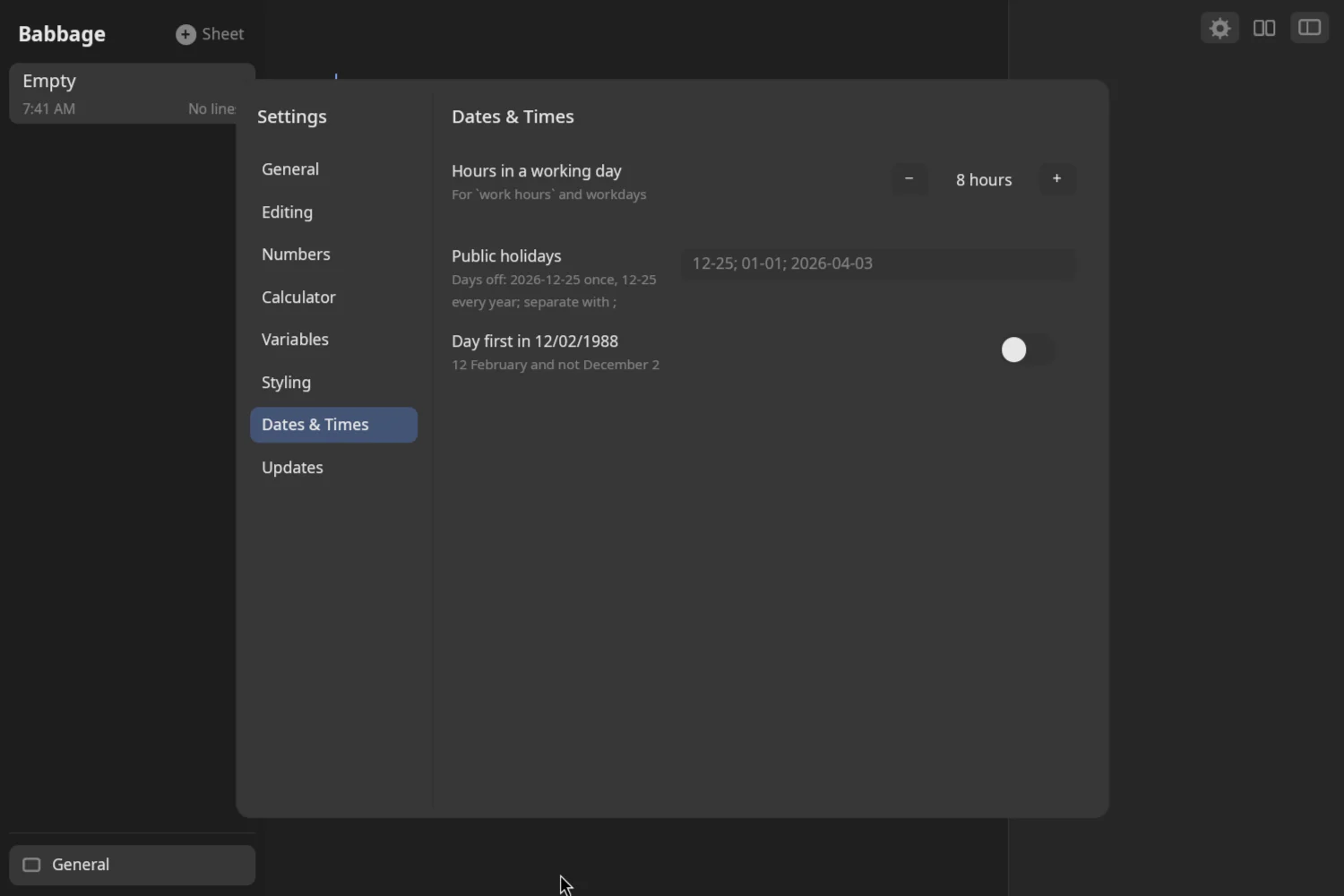
| Setting | Choices | Default | What it does |
|---|---|---|---|
| Hours in a working day | 1 to 24 | 8 | How long a day is when you work in work hours and workdays |
| Public holidays | Text | empty | Days off that workday arithmetic skips. Write 2026-12-25 for one particular date, or 12-25 for every year; separate with ; |
| Day first in 12/02/1988 | On, Off | Off | Reads 12/02/1988 as 12 February instead of December 2 |
See Dates and times for the forms these affect.
Updates
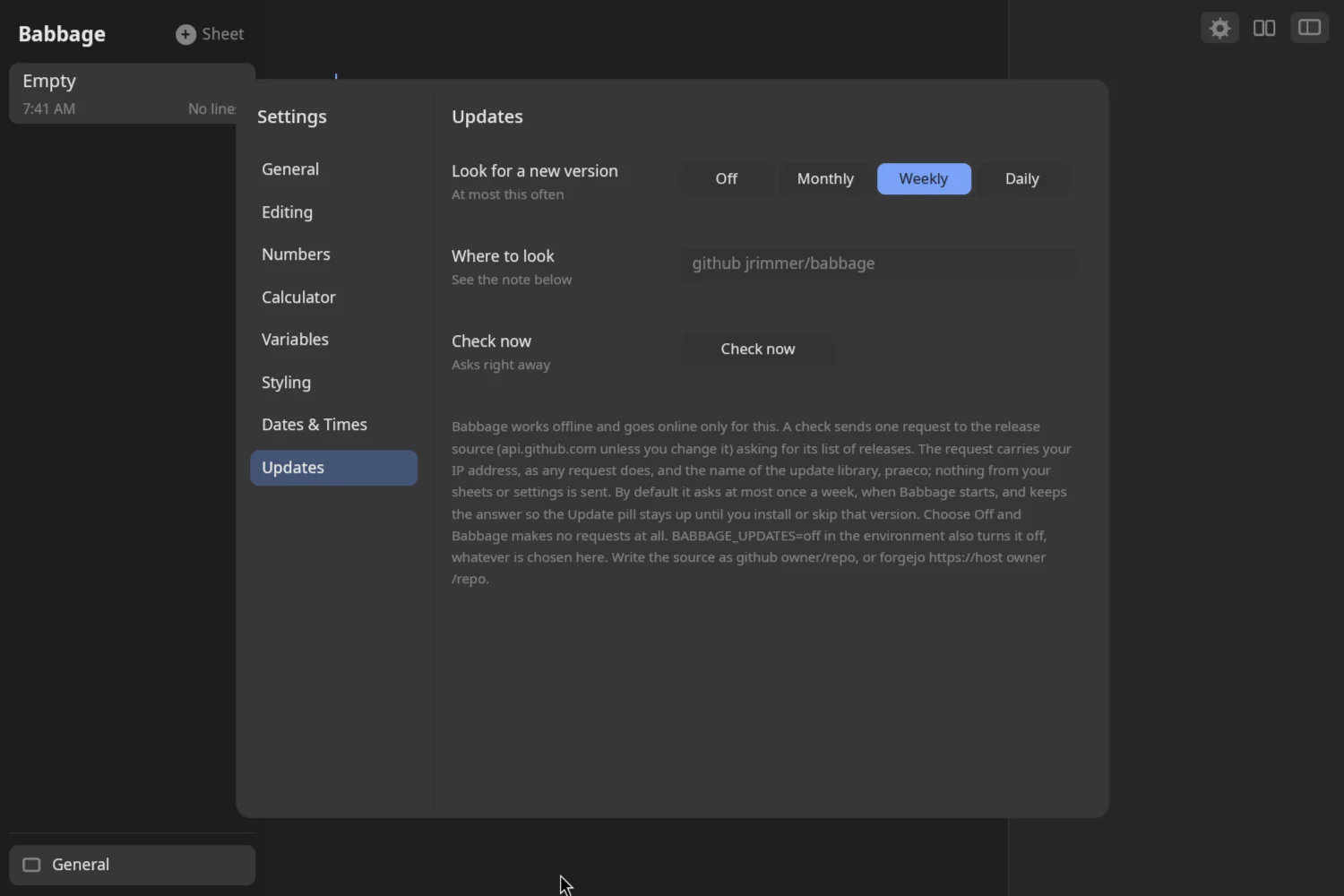
| Setting | Choices | Default | What it does |
|---|---|---|---|
| Look for a new version | Off, Monthly, Weekly, Daily | Weekly | At most how often Babbage asks whether a newer version exists. Off means it never goes online |
| Where to look | Text | github jrimmer/babbage |
Where the list of releases comes from. Write github owner/repo or forgejo https://host owner/repo |
| Check now | Button | Asks right away, whatever the interval |
Below the controls the pane carries a short note saying exactly what a check sends. All of it, along with installing an update and the checksum that guards it, is explained in Updates and privacy.
Where settings are kept
Settings are lines of the form name = value in a plain text file:
~/.config/babbage/settings
or $XDG_CONFIG_HOME/babbage/settings if that variable is set. Setting BABBAGE_CONFIG_FILE to a path makes Babbage use that file instead.
Changing a control in the window rewrites just that line (adding it if it is not there) and leaves the rest of the file alone, so you can keep your own lines and comments in it. A comment starts with a # at the start of a line or after a space, so a color such as #ff7a90 is still read as a value. For example:
# my settings
decimal_places = 4
tax = VAT 15%
day_first = on
If you edit the file by hand while Babbage is running, restart Babbage to be sure the change is read.
Two settings have no control in the window and are only available in the file:
| Line | What it does |
|---|---|
timezone = Europe/Paris |
Sets the time zone Babbage treats as local. Left out (or set to system), Babbage follows the computer's own zone |
update_skip = 1.2.3 |
The version you chose Skip this version for; written for you |
A line the app does not recognize is ignored, and a value that is not one of the allowed choices falls back to the default.