Every answer can be copied, and every answer can be written its own way: more or fewer decimal places, with or
without thousands separators, as 1.234567M or as the full number. The choices live in a small menu on the
answer itself, and they are saved with the sheet.
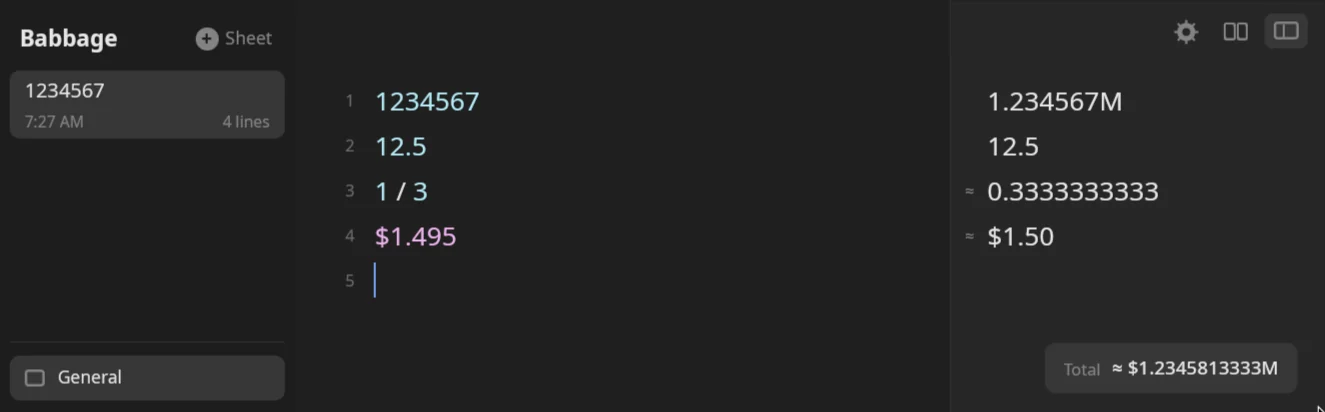
The answer menu
Move the pointer over the answers column. A round ⋯ button appears at the right of any line that has an answer. Click it to open the menu. Lines with no answer, such as headings, comments and errors, have no button.
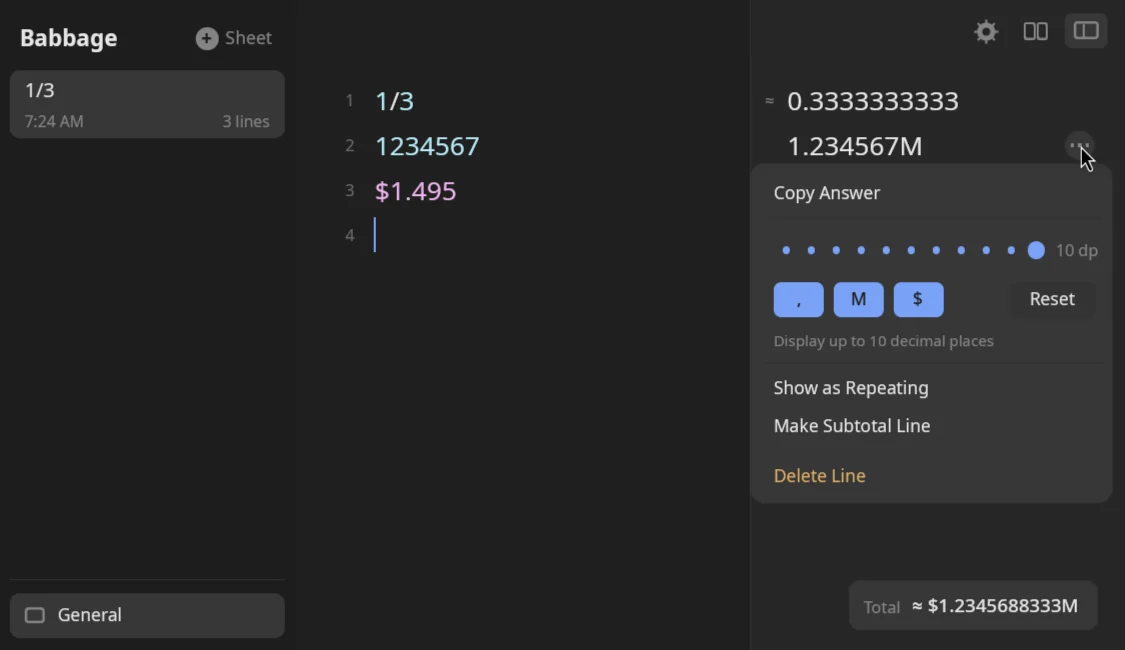
The menu opens just below the line, or above it when there is no room below. It stays open while you try formats, so you can see each change as you make it. Esc, or a click anywhere else, closes it.
| Control | What it does |
|---|---|
| Copy Answer | Copies the answer's text to the clipboard and closes the menu. |
| Decimal places (a row of eleven dots, 0 to 10) | Click a dot to show up to that many decimal places. The chosen dot is larger and the dots before it are filled. The label beside it reads N dp, and a line under the row reads "Display up to N decimal places". |
| , | Thousands separators on or off for this answer. |
| M | Notation for large numbers on or off: 1.234567M or 1,234,567. |
| $ | Fixed digits for money on or off: $1.50 or $1.495. |
| Reset | Clears every choice made on this line, so it follows the settings again. |
| Show as Repeating | Writes a number that never ends with its repeating part in brackets: 1/3 as 0.(3). A tick shows when it is on. See below. |
| Make Subtotal Line | Adds a line reading subtotal straight below this one. See Variables and totals. |
| Delete Line | Removes the whole line, text and answer. Shown in the warning color. The last remaining line is emptied instead. |
Subtotal and delete are edits to the sheet, so Ctrl+Z takes them back.
Decimal places
The dots set how many places the answer is cut to. A third with 4 places reads 0.3333, and a ≈ marks it
as rounded. With 0 places, answers are whole numbers: 7 / 2 reads 4. With 2 places, 1 / 8 reads 0.13.
The slider starts at what the line shows now, which is the Decimal places setting until you choose a number.
Choosing a number of places also turns off large-number notation for that line, so a number reads in full. If you want the notation as well, switch M on afterwards.
Repeating decimals
A fraction like a third never ends, so the usual answer is cut off and marked ≈. Show as Repeating writes it exactly instead, with the digits that repeat in brackets:
| Line | Usual answer | Show as Repeating |
|---|---|---|
1/3 |
0.3333333333 |
0.(3) |
1/6 |
0.1666666667 |
0.1(6) |
1/7 |
0.1428571429 |
0.(142857) |
22/7 |
3.1428571429 |
3.(142857) |
An answer written this way is exact, so it carries no ≈. It works on plain numbers, quantities
(1 m / 3 is 0.(3) m) and percentages. A number that ends, such as 1/8, reads as usual. If the repeating part
is longer than 50 digits the answer is written as usual. Money keeps its cents.
Choosing a number of decimal places turns Show as Repeating off for the line, and choosing Show as Repeating replaces a chosen number of places. Choose it again to turn it off.
The three switches
The ,, M and $ buttons are lit when the feature is on and dim when it is off. They show what the line shows now: a line you have not touched follows the settings, so a switch that is off in Settings is dim. One click flips that for this line, and the next click flips it back.
What each switch does on a number:
| Switch | On | Off |
|---|---|---|
| , | 1,234,567 |
1234567 |
| M | 1.234567M |
1,234,567 |
| $ | $1.50 |
$1.495 |
On, money is always written with its currency's usual digits, two for dollars. Off, it shows what the amount really is. The $ switch only changes money; other answers are left as they are.
Formats are saved with the sheet
What you choose for a line is kept in the sheet's file, so it is there when you open the sheet again. The choices follow the line's text, not its number: if lines are added or removed above it, or the file is edited elsewhere and the line moves, the choice stays with the line it was made for. If the line's text was changed outside Babbage, so that no line reads the way it did, the choice is not applied.
In the file, the choices are written as one line at the very end, such as:
⟦bbg line 3 dp=4 group=off #a1b2c3d4⟧
Babbage reads those lines and does not show them in the sheet. You never need to edit them. A line with no choices has no such line, and Reset removes it.
Copying an answer
There are two ways, and both copy the same text.
- Open the answer's ⋯ menu and choose Copy Answer.
- Click the answer, which highlights it, and press Ctrl+C.
The text copied is exactly what the answer column shows, with the format you chose. It does not include the ≈ mark. A highlighted answer can be moved up and down with Up and Down, which also moves the caret in the sheet. Left or Esc returns you to the sheet. Alt+Right highlights the answer of the line the caret is on, so you can copy without leaving the keyboard.
Typing anything in the sheet, or clicking in it, ends the highlight.
Settings that set the default
A line you have not changed follows the Numbers pane of Settings:
| Setting | What it sets |
|---|---|
| Number format | How numbers are typed and shown: 1,234.56, 1.234,56 or 1 234,56, or System. |
| Decimal places | The most places shown after the point, 0 to 10. The default is 10. |
| Use notation for large numbers | 300000 reads 300k, and 16777216 reads 16.777216M. On by default. |
| Thousands separators in answers | 1,000 and not 1000. On by default. |
The Calculator pane has two more that the menu's $ switch overlaps: Hide trailing zeros on money and Currency codes, not symbols. See Settings for every setting.
The line's own menu wins over the setting for that line only. Every other line keeps following the setting.
Rounding is half away from zero, so a halfway case goes to the larger size. A rounded answer is always marked with ≈, so you can tell it from an exact one.