Every page you write in Babbage is a sheet, and every sheet is one small text file in a folder on your disk. The sidebar lists them, saving happens on its own, and nothing is ever deleted for good by a click.
This chapter covers the sidebar, making, switching, renaming and trashing sheets, exporting a sheet with its answers, and where the files live so you can back them up or sync them.
The sidebar
The sidebar sits on the left. At the top is the Babbage name and a + Sheet button. Below it is one card for each sheet, and at the bottom is a General folder pill and, when there is something to say, a short notice in a warm color (for example where an export went, or that a sheet was moved to the trash).
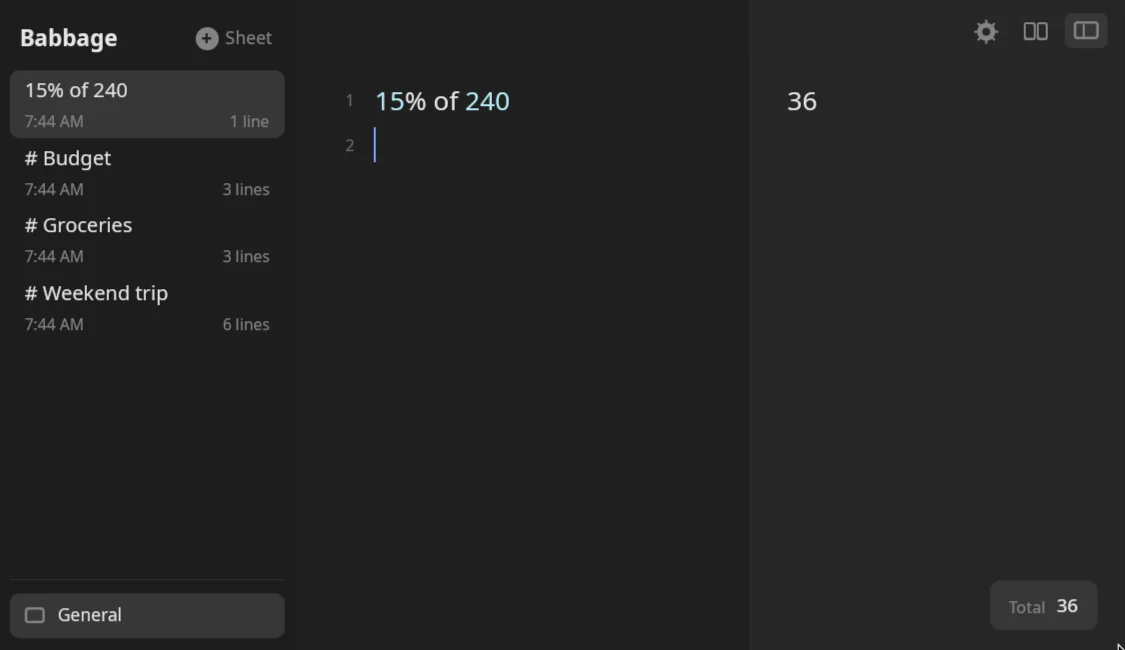
Each card shows:
- A name. If you have named the sheet, that name. If not, the first line of the sheet that holds anything besides spaces. A sheet with nothing in it is called Empty.
- When it last changed. Just the time (
8:37 PM) if it changed today, otherwise the month, day and time (Oct 25 at 8:37 PM). - How many lines it has, such as
1 lineor12 lines, orNo lines. Blank lines at the end are not counted.
The open sheet's card is highlighted and updates as you type, before the file is even saved.
Hide or show the whole sidebar with Ctrl+B, or with the sidebar button at the right end of the toolbar.
Order of the cards
By default the most recently changed sheet is first. In Settings, General you can order the cards by Changed, Created or Title (alphabetical, ignoring capitals). With the default order the cards do not jump about while you type, and a brand new sheet always goes to the top.
Making and switching sheets
| To | Do this |
|---|---|
| Make a new, empty sheet | Press Ctrl+N, or click + Sheet |
| Open a sheet | Click its card |
| Go to the next or previous sheet | Ctrl+Tab or Ctrl+Shift+Tab (this wraps round at the ends) |
A new sheet is opened at once, ready to type in. Babbage names its file sheet-1, sheet-2 and so on, using the first number that is free, but you never see those names unless you look in the folder: until you name a sheet yourself, the card shows its first line.
Each sheet remembers its own undo history while Babbage is open, so switching away and back does not lose the ability to undo.
When Babbage starts it opens the sheet you changed last. If you would rather start on a clean page every time, set When the app opens to New sheet in Settings, General. (If your newest sheet is still empty, Babbage just reuses it instead of piling up blank ones.)
Renaming a sheet
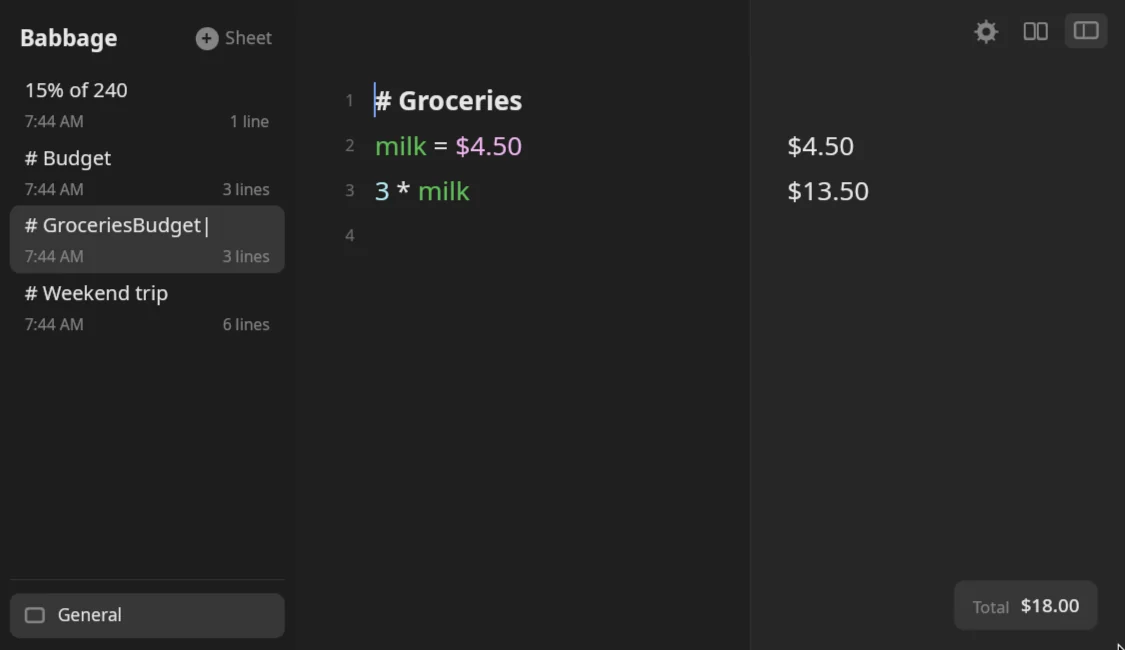
A sheet's name is its file name. There are three ways to start renaming:
- Press F2.
- Double-click the card.
- Right-click the card and choose Rename.
The card's name turns into a text field. Type the new name and press Enter to keep it, or Escape to leave the name as it was.
A name can be up to 100 characters. It cannot be empty, cannot start with a full stop, and cannot contain a slash (/ or \) or other control characters. If it breaks one of those rules, or another sheet already has that name, the rename is refused and the notice at the bottom of the sidebar says why.
Renaming never changes what is in the sheet.
Moving a sheet to the trash
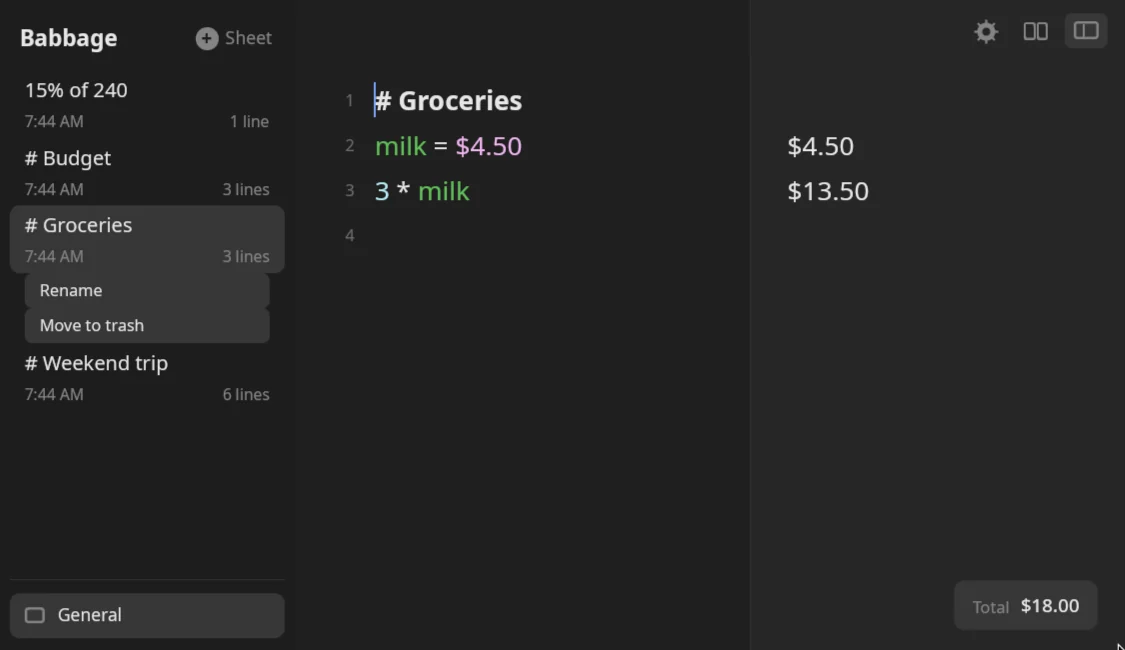
Press Ctrl+Shift+Delete, or right-click the card and choose Move to trash. There is no confirmation question, because nothing is destroyed: the file is moved into a folder named .trash inside your sheets folder, with the time added to its name, so deleting two sheets with the same name never overwrites one with the other.
Babbage then opens the sheet that was next to it in the list (or a fresh empty one if it was your last sheet) and shows Moved to the trash in the notice.
Getting a sheet back
Press Ctrl+Shift+T to bring back the sheet you moved to the trash last. It returns under its old name, or as name (restored) if a sheet with that name exists, and it opens at once. The notice says Restored from the trash. Press it again to bring back the one before, and so on. With nothing in the trash the notice says "The trash is empty".
You can also move a file out of the hidden .trash folder inside your sheets folder by hand, renaming it to end in plain .bbg. The trash is never emptied by Babbage; clear it yourself when you want the space.
Saving
You never save. Babbage writes the open sheet a moment after you stop typing (about four tenths of a second), and again whenever you switch sheets, rename one, move one to the trash, or quit with Ctrl+Q. If a save ever fails, the notice in the sidebar says "Could not save" and why.
Each save is written safely: Babbage writes the new text to a temporary file beside the sheet, flushes it to disk, and only then swaps it in for the old one. If the power goes out or the program is killed half way, you have either the whole old sheet or the whole new one, never half of each. Temporary files left behind by a crash are cleaned up the next time Babbage starts.
Exporting a sheet
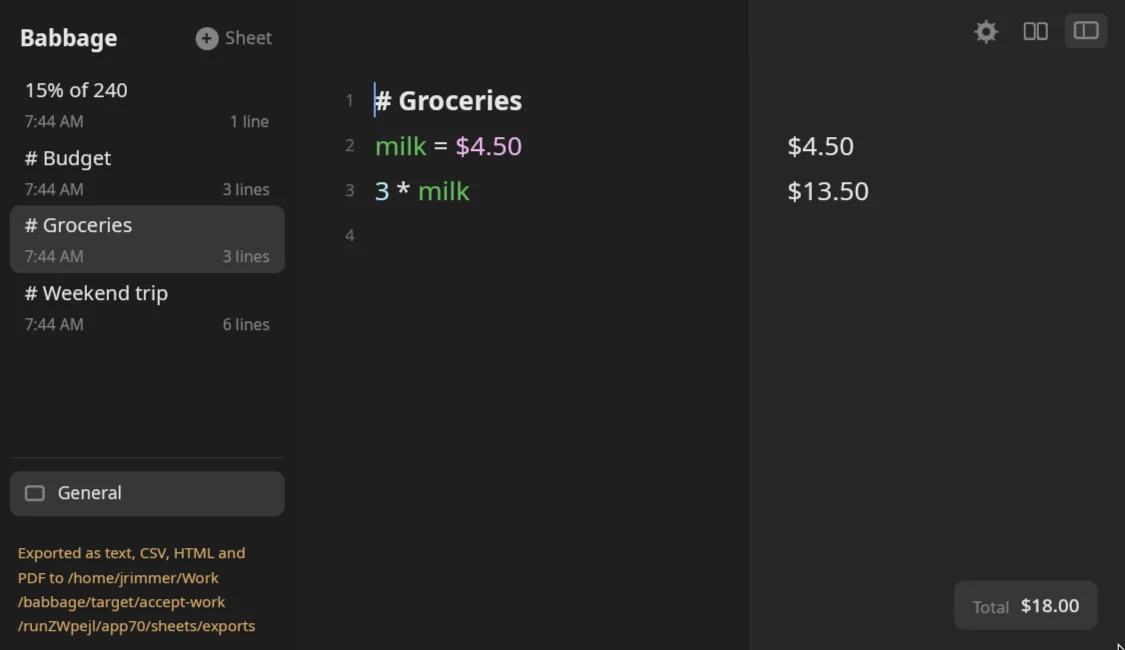
Press Ctrl+Shift+E to export the open sheet. Babbage writes four files at once, into a folder called exports inside your sheets folder, and the notice shows the folder:
| File | What it holds | |
|---|---|---|
Name.txt |
Each line, then ` | and its answer, lined up in a column. A blank line and a Total` line follow if the sheet has a total |
Name.csv |
Two columns, the line and its answer, one row per line, with a last Total row. Opens in any spreadsheet |
|
Name.html |
One self-contained web page: a table of lines and answers, with headings, comments and the total styled | |
Name.pdf |
A plain document in a fixed-width font, one page after another, with the answers in a column on the right |
Name is the sheet's name (or its first line, if you have not named it), with anything that is not a letter, digit, space, dash, underscore or full stop turned into an underscore. Exporting again overwrites the earlier files of the same name.
An answer that was rounded or shortened is marked with ≈ in the export, the same as on screen. The text export of a small sheet looks like this:
# Groceries
milk = $4.50 | $4.50
3 x milk     | $13.50
To copy a single answer instead of the whole sheet, see Answers and formats.
Where sheets are stored
Sheets live in one folder, by default:
~/.local/share/babbage/sheets
If the environment variable XDG_DATA_HOME is set, the folder is $XDG_DATA_HOME/babbage/sheets instead.
To keep your sheets somewhere else, set BABBAGE_DATA_DIR to the folder you want before starting Babbage, for example:
BABBAGE_DATA_DIR=~/Documents/calculations babbage
That folder is used exactly as given (Babbage makes it if it does not exist), and it takes priority over the default location. Use it to keep a separate set of sheets for a different purpose, or to point Babbage at a folder that something else syncs.
Inside the folder you will find:
- One
.bbgfile per sheet. exports/, made the first time you export..trash/, made the first time you move a sheet to the trash.
Babbage has no button for opening the sheets folder. Open it in your file manager, or from a terminal:
xdg-open ~/.local/share/babbage/sheets
Settings are kept separately from sheets, in ~/.config/babbage/settings; see Settings.
The .bbg file format
A .bbg file is plain text in UTF-8. Each line of the sheet is one line of the file, so you can read it in any text editor, search it with grep, compare versions with diff and keep it in version control.
For a sheet like this:
# Groceries
milk = $4.50
3 x milk
the file is exactly those three lines, each ended by a newline. There is no header and nothing hidden.
One thing more can follow the text. When you change how a line's answer is written (its decimal places, thousands separators, large-number notation or money digits, from the answer's ⋯ menu), Babbage records the choice in a line at the very end of the file that starts with ⟦bbg :
⟦bbg line 2 dp=4 #a1b2c3d4⟧
That says "the answer of line 2 shows four decimal places". The short code after the # identifies the line's text, so if you edit the file in another editor and lines move, the choice follows the text and not the number. These lines are not part of the sheet: they are not shown, not counted and not used for the card's name. Leave them alone, or delete them to put the answer back to the default.
A few more details that help if you edit files by hand:
- Windows line endings (
\r\n) are read fine, and a missing final newline is fine. - A file that is not valid UTF-8 is skipped and does not show in the sidebar.
- Only files ending in
.bbgare sheets. Older files ending in.babbageare renamed to.bbgwhen Babbage starts. - A file's name, without
.bbg, is the sheet's name. Files whose names start withsheet-are treated as unnamed, and show their first line on the card.
Backing up and syncing
Because a sheet is just a file, backing up is just copying the folder. Copy ~/.local/share/babbage/sheets (or your BABBAGE_DATA_DIR) to a backup drive, or add it to whatever backup tool you already use. Include the hidden .trash folder if you want trashed sheets kept too.
To share sheets between two computers, put the sheets folder in a folder that your sync tool already watches, and point BABBAGE_DATA_DIR at it on each machine. Two cautions:
- The sidebar notices new, removed and changed files within a second or so, but the sheet you have open is not reloaded from disk. If another computer changes the sheet you are looking at, switch away and back (or restart Babbage) to see it, and do not type in it meanwhile.
- Do not have the same sheet open on two computers at once. The later save simply replaces the earlier one.