This chapter covers what you will do every day: make tasks, say when they matter, finish them, and look at them through the focus lists.
Lists and list groups
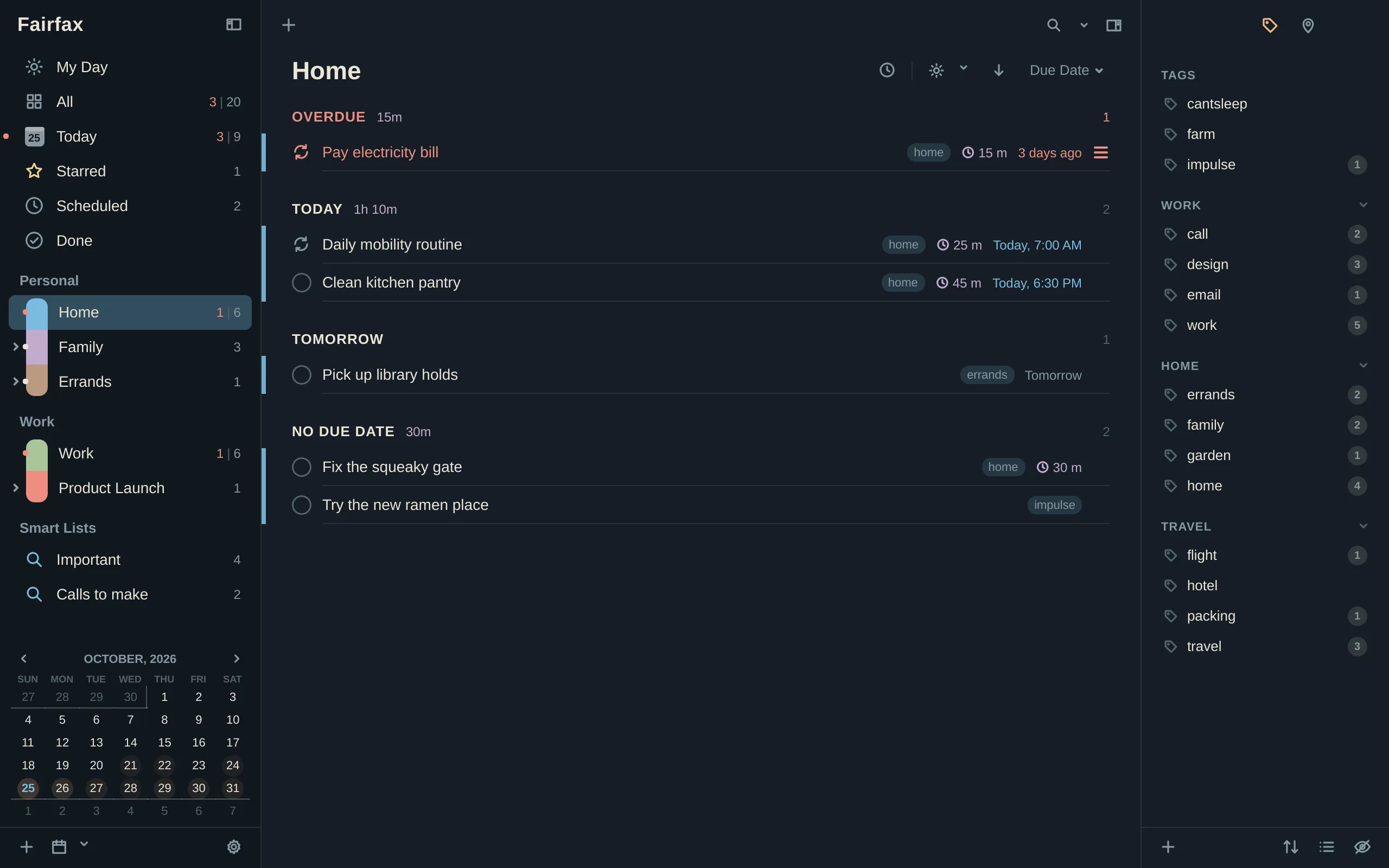
A list is a place for related tasks: Home, Work, Errands. You can keep as many as you like. A list group is a heading that gathers lists in the sidebar, such as Personal and Work.
Make a list
- Keyboard: press Ctrl+Shift+N.
- Mouse: click the + in the Lists panel and choose New List. The same menu has New List Group, New List in Group and New Smart List….
Type a name and press Return. Right-click a list and choose Edit List… to change its name, colour and group, and to decide whether its tasks show up in All, Today and Done. You can also drag lists to reorder them and drop them into a group.
The Inbox
Settings → Tasks has a Getting Things Done® Inbox switch. When it is on, you get a list called Inbox that catches tasks you add without choosing a list. Pressing Ctrl+0 jumps to it. Turn it off and the Inbox and its tasks are deleted. Ctrl+Z brings them back.
Add a task
Fairfax gives you two doors, and they behave the same.
In the main window
- Pick the list you want (or Today, or Starred; see below).
- Press Ctrl+N.
- Type the title and press Return.
The task lands in the list you are looking at. A task added while Today is open is due today, and one added in Starred is starred. If you would rather every task go to one place, set a Default list in Settings → Tasks and turn on Always use the default list for new tasks.
With Quick Entry
Quick Entry is a small window for capturing a thought without leaving what you
are doing. Press your Quick Entry key (Super+Shift+T on Omarchy), type, and
press Return. You can also run fairfax --quick.
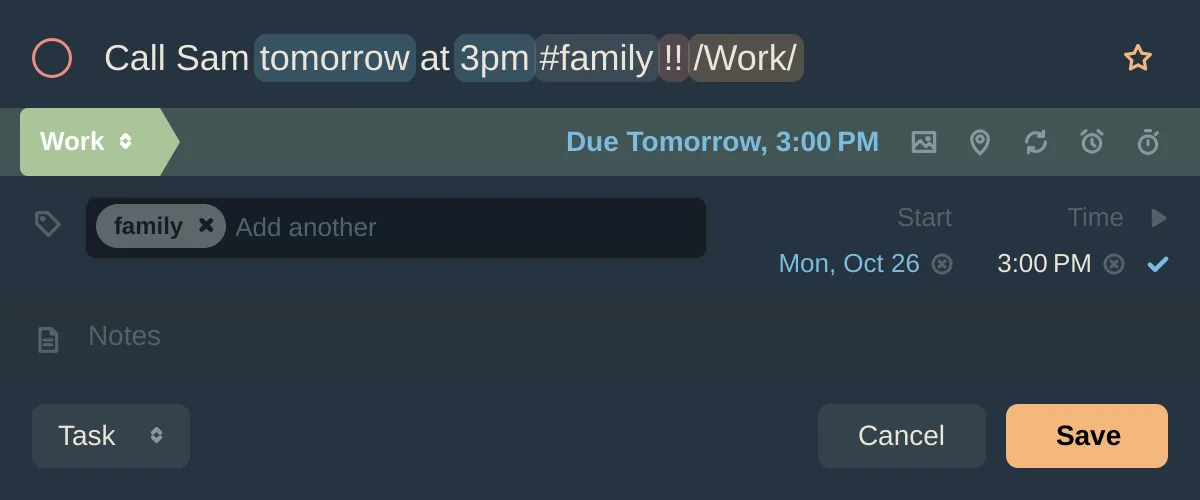
Quick Entry is one line to type, with a row of labelled pills under it: list, due, start, repeat, alert, duration, tags, place, priority, star and attach. The pills always show what the task will get. To change one, click it, or press Tab to reach it. Its choices open in a row underneath. Pick with the mouse, the arrow keys or a digit, and press Escape to close the row.
| Key in Quick Entry | What it does |
|---|---|
| Return | Save the task |
| Shift+Return | Save, and start another (pressing your Quick Entry key again does the same) |
| Ctrl+Return | Save, and open the task in the main window |
| Ctrl+W | Hide Quick Entry |
Two clipboard conveniences: if you paste several lines, the first becomes the title and the rest go into the notes. If you paste a link, it becomes the title and the task's link action. Quick Entry can also fill the notes from the clipboard when it opens; that is a switch in Settings → General.
Type it the way you would say it
You don't have to fill in fields. Write the task naturally and Fairfax picks out the details, fills the pills (or the capsules in the main window), and removes those words from the title:
Call Sam tomorrow at 3pm #family !! every Monday [30m] /Work/
This makes a task called "Call Sam", due tomorrow at 3 PM, tagged family, medium priority, repeating every Monday, lasting 30 minutes, in the Work list.
What it understands:
| You type | You get |
|---|---|
tomorrow, fri, next week, in 2w, Dec 3 |
A due date |
at 3pm, 15:30, evening |
A due time |
starting Friday, starts tomorrow |
A start date (see below) |
from Monday until Friday |
A start and a due date |
every Monday, every 2 weeks, every day |
A repeat |
alert 30m |
An alert 30 minutes before |
[30m], [1h30m] |
A duration |
!, !!, !!! |
Low, medium or high priority |
* |
A star |
#family |
A tag |
/Work/ |
A list (it must be a list you already have) |
@ Home |
A place (it must be a place you already have) |
Put words in "quotes" to keep them exactly as typed. "Call 'tomorrow' bakery" will
not become a date.
The same detection works for a new task's title in the main window. There it shows what it found as capsules, with a Stop detecting chip you can click to switch it off for that one task. If you never want it, turn it off in Settings → Tasks. Quick Entry and the editor each have their own switch.
Edit a task
- Keyboard: select it and press Return.
- Mouse: double-click it.
The editor opens in place. Press Esc or Ctrl+Return to finish.
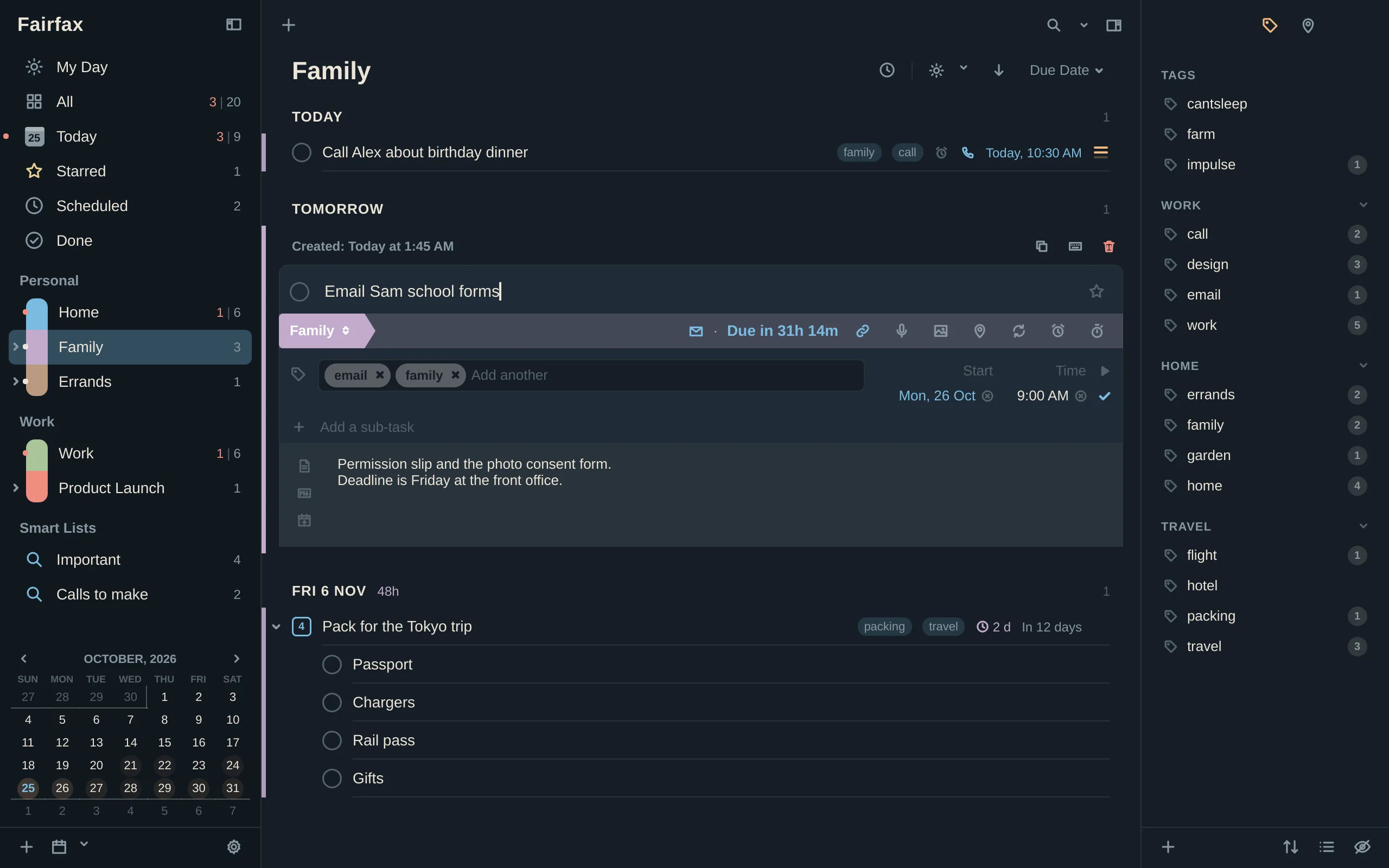
From the editor you can set:
- the title and notes (notes understand Markdown, clickable links, and
@{Task name}links to other tasks; type@{for a picker) - due and start dates, with a calendar behind each field
- a repeat, alerts, a duration, a location, and an action (call, message, email, open a link, visit, search the web)
- tags, priority and a star
- attached files, pictures and audio notes
- sub-tasks, added with Return (see Organizing)
Dates are typeable. Click a date field and type tom, fri or in 2w, or press
↓ to open a calendar. Alt+1 to Alt+4 fill in Today, Tomorrow, the day after, and
a week from now.
Many fields have their own jump key, so you rarely need the mouse. Open the editor straight at a field with:
| Keys | Opens the editor at |
|---|---|
| Ctrl+E | Notes |
| Ctrl+B | Action |
| Ctrl+G | Location |
| Ctrl+' | Alerts |
| Ctrl+/ | Dates |
| Ctrl+; | Repeat |
Quick changes without opening the editor
With a task selected, single keys change it in place:
| Key | Does |
|---|---|
| t / y | Due today / due tomorrow |
| d | Defer: type tom 3pm, fri, in 2w, or an offset like +3d |
| k | Schedule (start date), the same way |
| e / x | Set the due time / the duration |
| ] and [ | Due date a day later / earlier (hold Shift for a week) |
| l | Add tags |
| m | Move to another list |
The keyboard chapter has the full table.
Move a task to another list
Press m, pick a list, and press Return. Or drag the task onto a list in the sidebar. You can drop it on Today, Starred or Done too, to change it the way that list implies.
Complete a task, and change your mind
- Keyboard: select it and press Ctrl+.
- Mouse: click the circle to the left of the title.
Press Ctrl+. again, or Ctrl+Z, to bring it back. Everything you do in Fairfax can be undone with Ctrl+Z, and redone with Ctrl+Shift+Z.
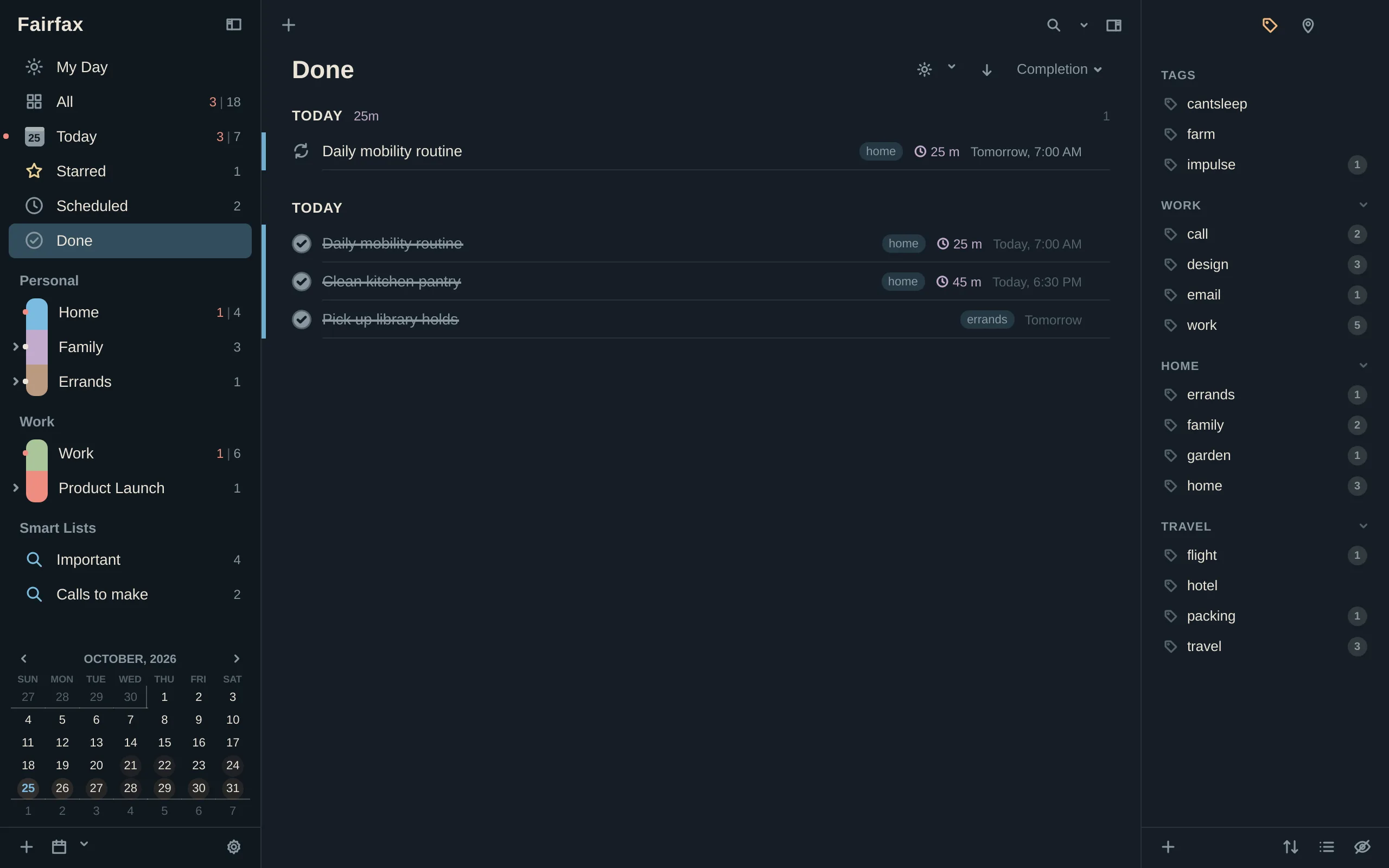
A completed task moves to Done. How long it stays in the list you are in is up to you: see Show completed tasks for in Settings → Tasks. You can also hide completed tasks for the moment with Ctrl+O. A repeating task is different: completing it keeps a done copy and moves the task on to its next date. See Repeats and alerts.
Abandon a task you will not do
Some tasks you decide not to do. Completing them would be a small lie, and deleting them throws the record away. Abandon closes the task as "won't do":
- Mouse: right-click the task and choose Abandon. The editor has an Abandon button (the ✕ beside the trash can) too.
- Keyboard: select it and press w, or Ctrl+Alt+A from anywhere.
An abandoned task closes the way a completed one does. It leaves your lists under the same Show completed tasks for setting, and it appears in Done, but struck through, dimmed and marked Abandoned. It is never counted as done: not in My Day's Done today, and not in any total. Press w or Ctrl+Alt+A again (or choose Mark as Not Abandoned) to reopen it, or press Ctrl+Z, just as for a completed task. In a project, abandoning the project abandons the tasks still open inside it; tasks you had already done stay done.
To see only one kind in Done, open the search presets (the small arrow beside the search box) and choose Abandoned or Completed Only. A repeating task is different: see Repeats and alerts.
Start dates and due dates
Fairfax keeps two dates, and the difference is the most useful thing to learn.
- The due date is when a task must be done.
- The start date is when you want to see it.
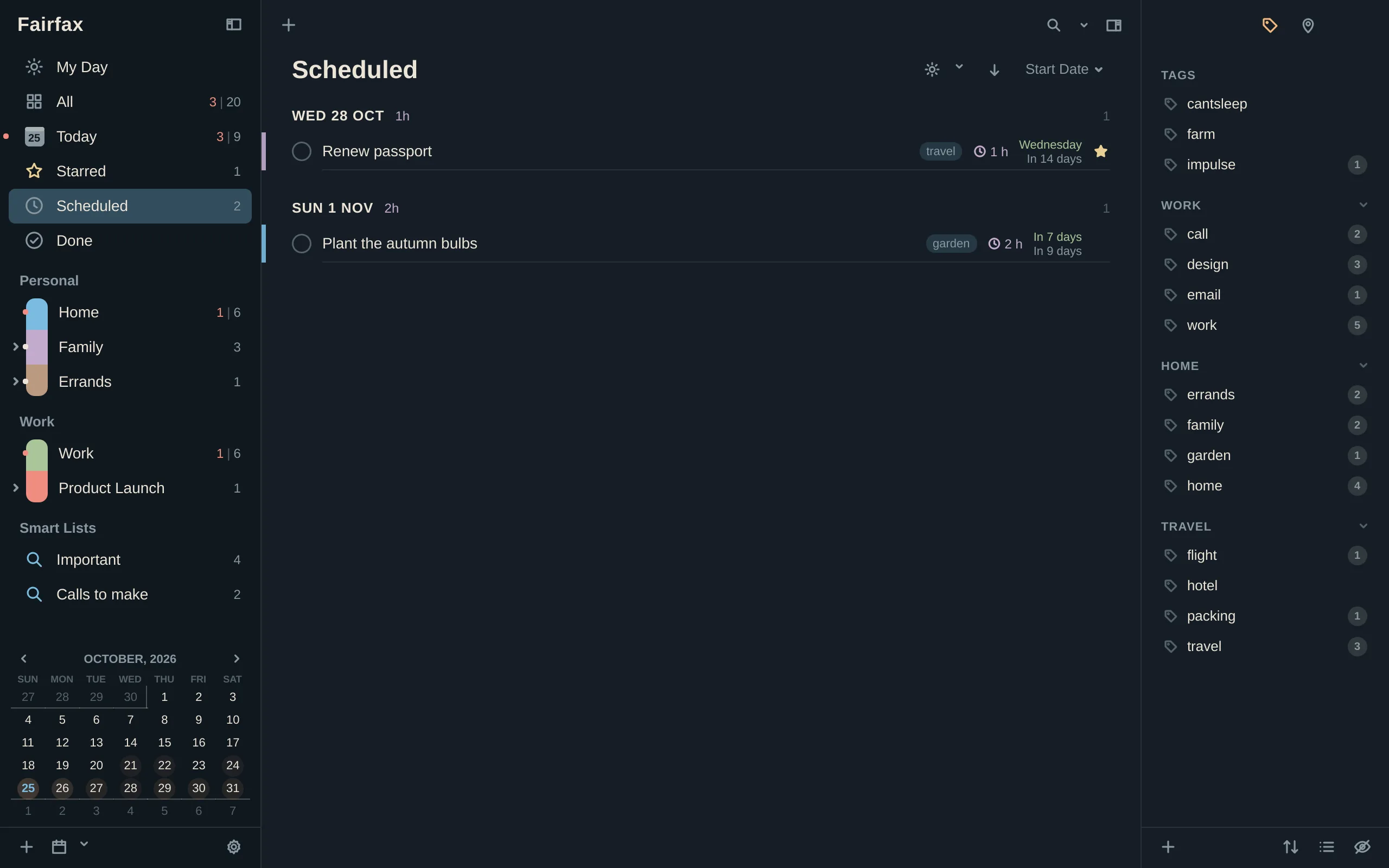
A task with a start date in the future stays out of the way. It waits in Scheduled and appears on the day it starts. That keeps today's list honest: "Plant the autumn bulbs" does not nag you in July.
Once the start date has passed, the task stays visible until it is done, even if it has no due date. Fairfax calls this "still working on".
Quick ways to set them: t and y set the due date, Ctrl+T starts a task today, . and , nudge the start date.
Durations
A duration says how long a task will take: [30m] when you type it, or
press x on a task. Durations do three things for you:
- A task with a duration and a due time shows up ahead of its deadline, because Fairfax counts back from the due time.
- Headings show the total time still to do (for example "2h 45m"). That can be turned off in Settings → Appearance.
- My Day adds them up to tell you whether the day fits.
Notes
Every task has a notes area. Write whatever helps: a phone number, a checklist of
thoughts, a link. Notes understand Markdown as you type, links are clickable, and
@{Task name} makes a link to another task. You can show the first lines of notes
under each task with Show notes under tasks in
Settings → Appearance.
Stars and priority
- A star marks a task you care about. Click the star at the end of a row, or press s. Starred tasks all collect in Starred.
- Priority has four levels: none, low, medium and high. Press 0, 1, 2 or 3, or = and - to raise and lower it. Right-click the star (or hold it) for a priority menu.
Priority and stars affect sorting and show up in My Day's suggestions.
The focus lists
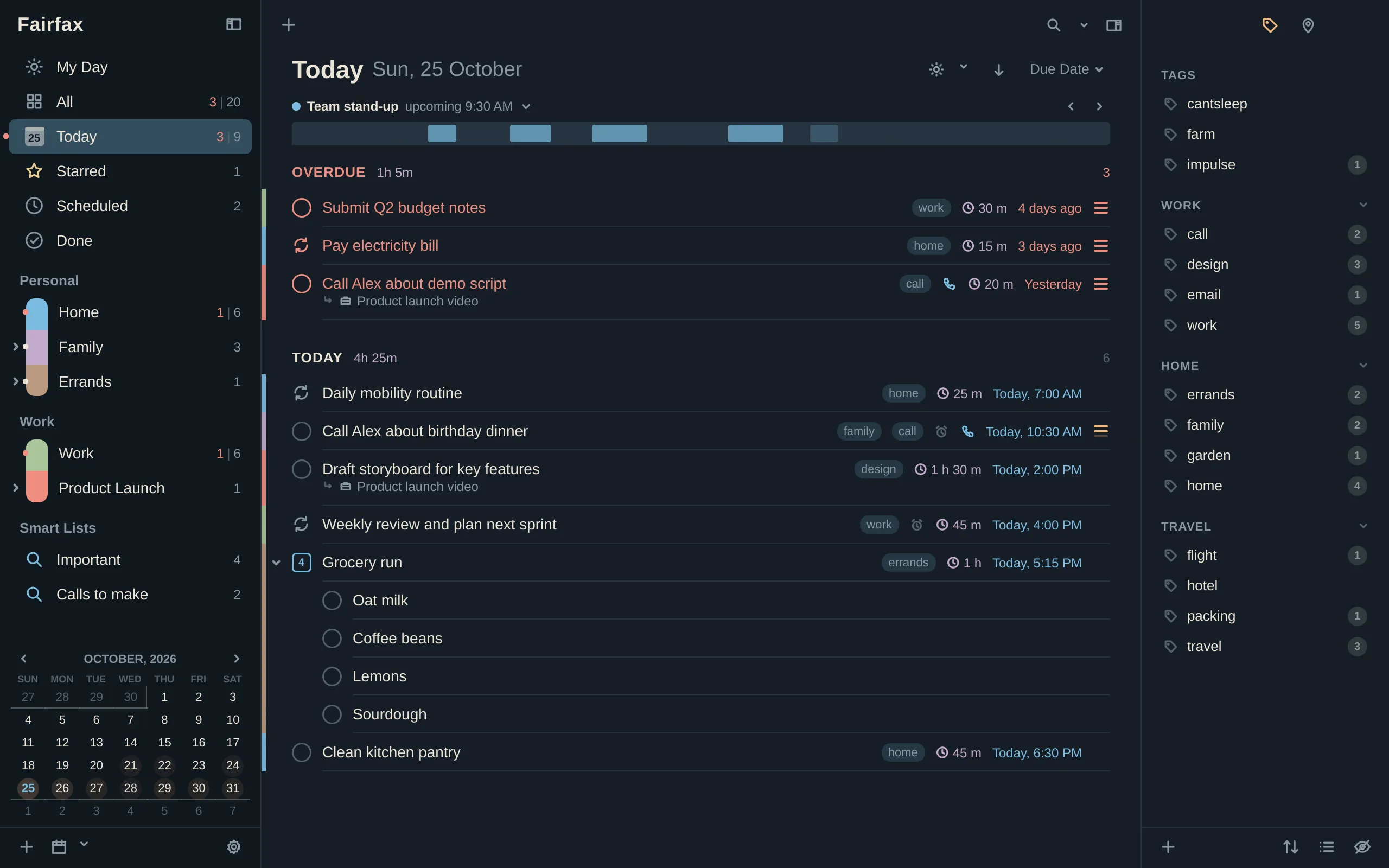
Five lists near the top of the sidebar gather tasks from every list at once. They are called focus lists because each answers one question.
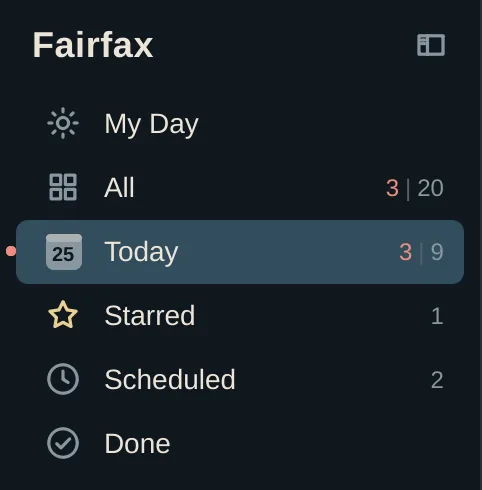
| List | Shortcut | What you will find |
|---|---|---|
| All | Ctrl+1 | Every open task |
| Today | Ctrl+2 | What is due today, what is overdue, and what you have started |
| Starred | Ctrl+3 | Every starred task |
| Scheduled | Ctrl+4 | Tasks hidden until their start date |
| Done | Ctrl+5 | Tasks you have completed, and the ones you abandoned |
Tasks that wait in Scheduled come back by themselves on their start day. A task you add while Today is open is due today. A task you add in Starred is starred. Today's rules can be changed in Settings → Today & Lists: for instance whether overdue and starred tasks are included.
Narrow any list with the Focus Filter
The sun icon in the sort bar (or Ctrl+J) filters the list you are in to tasks that are overdue, due today, due this week, high priority, starred, and so on. Each list remembers its own filter, so you can have Work show only what matters while Home shows everything.
Sorting
Use the sort button in the bar above the tasks to sort by due date, start date, priority, title, duration and more, and the arrow beside it to reverse. Each list remembers how you sorted it.
Look closer without opening anything
Select a task and press Space for Quick Look, a floating preview with the notes, dates and links. Use the arrow keys to move through other tasks while it stays open. Press Space or Esc to close it. You can turn Quick Look off in Settings → Tasks.