Some tasks come back every week. Some need a tap on the shoulder before they are due. This chapter covers both.
Repeating tasks
A repeating task is one you do again and again: pay the electricity bill, water the plants, hold the weekly review. You set it up once and Fairfax keeps it going.
Make a task repeat
Pick whichever way suits you:
- Type it. In Quick Entry or a new task's title, add
every Monday,every 2 weeksorevery day. - Use the editor. Open the task and click the repeat button, or press Ctrl+;.
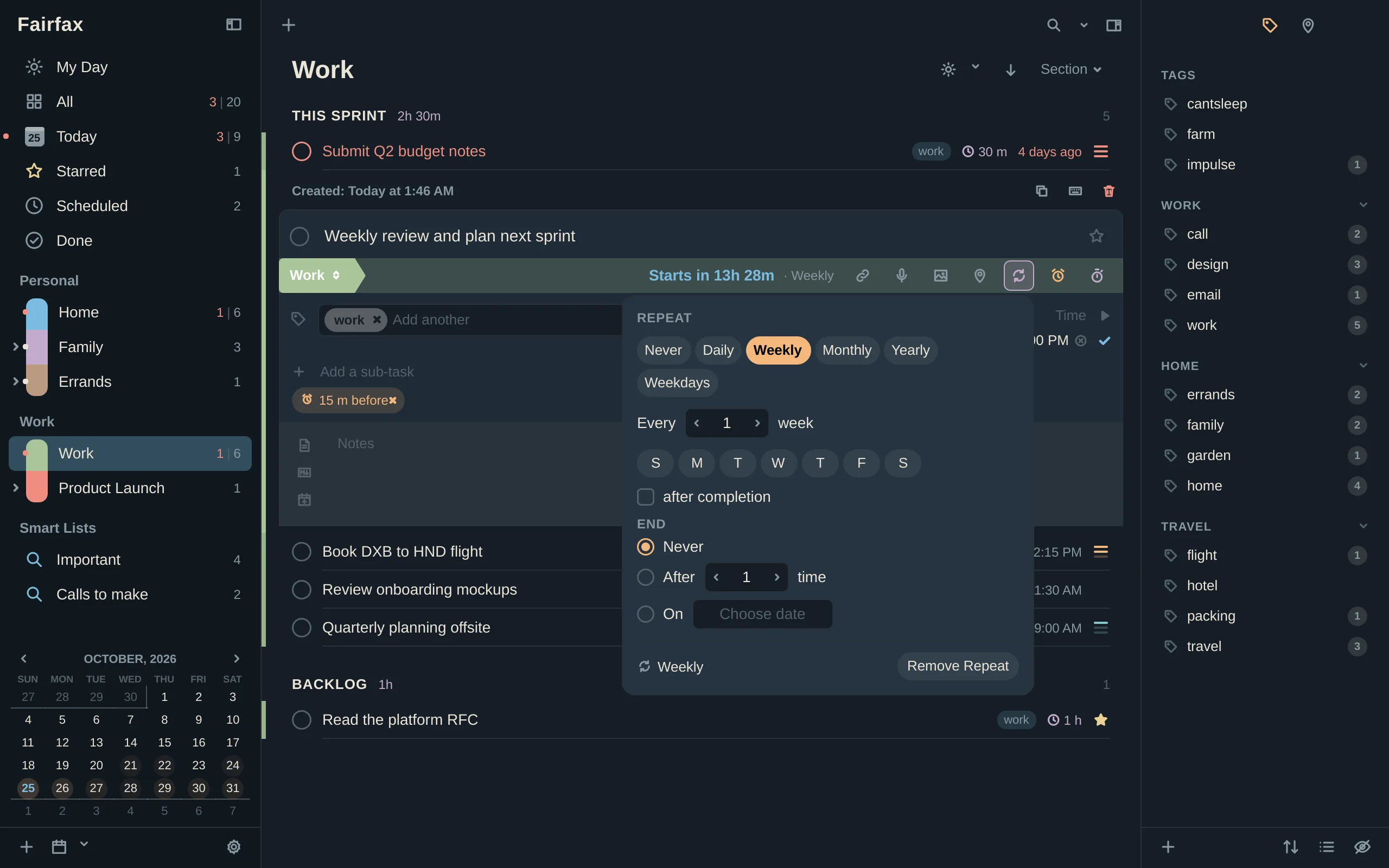
The repeat editor offers presets (Daily, Weekly, Every 2 weeks, Monthly, Quarterly, Yearly) and a full custom rule:
- Every N days, weeks, months or years.
- Weekly: choose which weekdays.
- Monthly: on a day of the month ("On day 15"), or on a pattern such as "the 2nd Tuesday" or "the last Friday".
- After completion, explained below.
- End: Never, After N times, or On a date you choose.
A line at the bottom of the popup describes the rule in words, so you can check it says what you mean. A repeating task shows a repeat arrow in place of the usual circle.
What happens when you finish one
When you complete a repeating task, Fairfax keeps a done copy in Done and moves the task on to its next date. You never have to re-create it. If the repeat has an end (after N times, or on a date), the last occurrence simply completes.
You can also abandon a repeating task (right-click → Abandon, w or Ctrl+Alt+A). That skips this occurrence: the task moves on to its next date and an abandoned copy waits in Done. A skipped occurrence is not a finished one, so it does not count toward "end after N times".
From the due date, or from when you finished
By default, the next date counts from the due date. A bill due on the 1st stays due on the 1st of every month, even if you pay it on the 5th.
Tick After completion and the next date counts from the day you finished the task. That suits things that need a gap rather than a calendar slot: "Water the ferns, three days after I last did". Set it to every 3 days, after completion. Finish it on a Thursday and the next one is due on Sunday.
Seeing and finding repeats
type: repeat finds every repeating task (see Search).
Press Ctrl+; on a selected task to look at or change its rule.
Alerts
An alert (Fairfax also says alarm) pops up a notification at a time you choose. A task can have up to ten.
Add an alert
- Type it. Add
alert 30mto a task's title in Quick Entry. That is an alert 30 minutes before. - Use the editor. Click the alert button, or press Ctrl+', and pick one:
| Choice | Meaning |
|---|---|
| At due time, 5 minutes before, 15 minutes before, 30 minutes before | Counted from the due time |
| 1 hour, 2 hours, 6 hours, 12 hours, 1 day, 2 days before | Counted from the due time |
| Days Before at a Time… | A number of days before the due date, at a clock time, for example "1 day before at 6 PM" |
| At a Date and Time… | One exact moment |
| Remove All Alerts | Clears them |
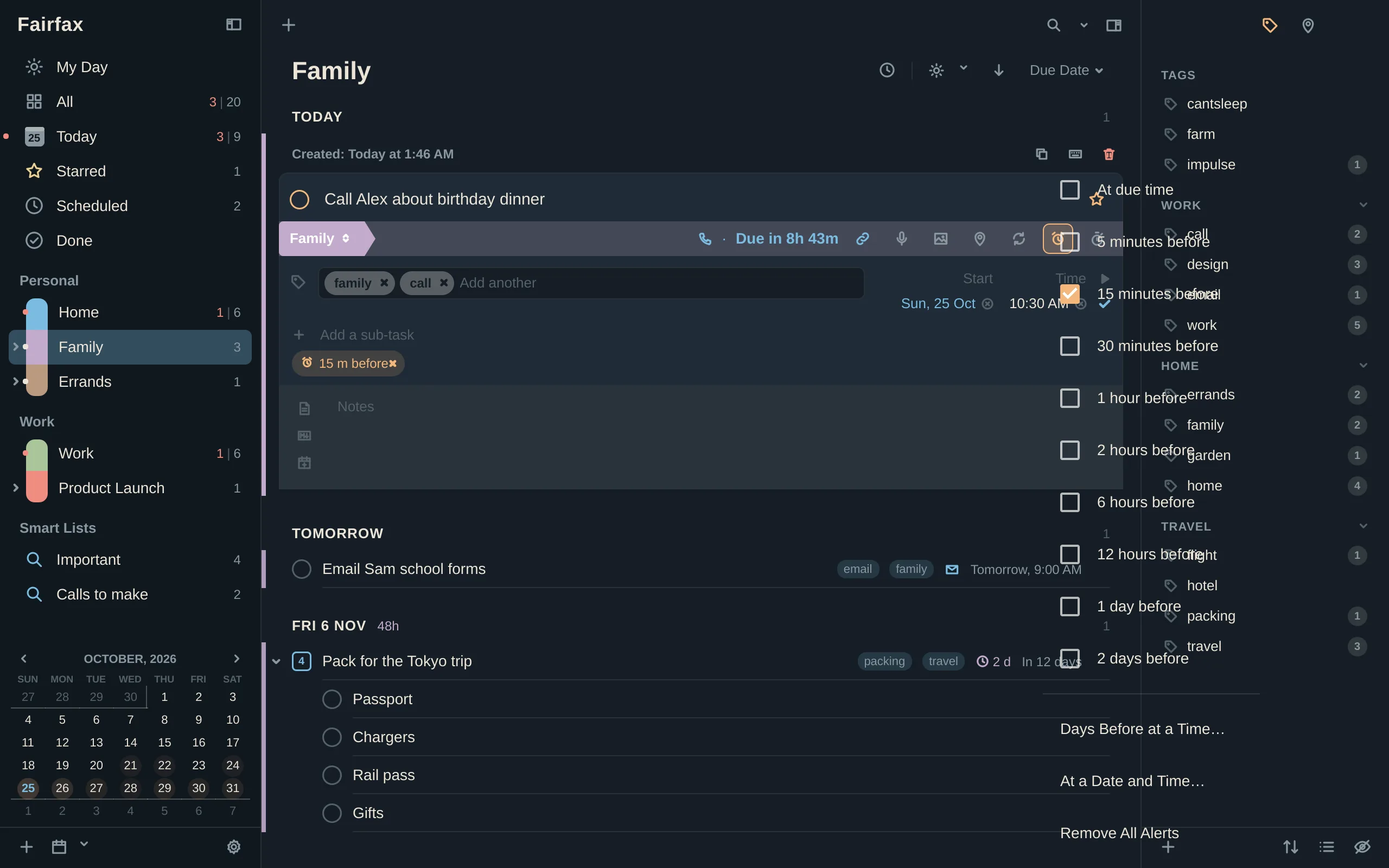
Each alert is either a Message (shown once) or a Message with Sound (plays a sound, and can repeat; see Nagging below). Click an alert's chip in the editor to change which it is.
An alert needs something to count from. If a task has no due date, alerts count from its start date. Choosing a "before due" alert on a task with no dates at all gives the task today as its due date.
Checklist items cannot have alerts of their own. Put the alert on the checklist.
Alerts for tasks that only have a date
A task with a due date but no time has no clock time to count from, so Fairfax uses a time of its own. That is the Alerts on date-only tasks fire at setting in Settings → Alerts (9:00 AM unless you change it).
Alerts that add themselves
If you always want a reminder, set Default Reminders in Settings → Alerts: one for tasks with a due time (for example 15 minutes before), and one for tasks with only a date (On the day, at a time you choose). Fairfax adds them whenever a task gets a due date and has no alerts yet. You can still edit or remove them on any task.
Silence a list
Right-click a list and choose Mute Alerts. No task in that list will alert. Unmute it and alerts that were waiting go off, as long as they are not very old.
Desktop notifications
When an alert goes off, Fairfax shows a desktop notification with:
- the task's title, its list, its due time, and the first lines of its notes
- a Complete button
- a Snooze menu
- a button for the task's action, if it has one (Call, Email, Open Link…)
- clicking the notification opens the task in Fairfax
While you have Do Not Disturb on in mako or dunst, notifications stay silent. A notification closes by itself if you complete the task, delete it, or change its date.
Snooze
Not now? Snooze offers:
- Snooze 5 Minutes
- Snooze 15 Minutes
- Snooze 1 Hour
- This Evening (7:00 PM, or tomorrow's if that has passed)
- Tomorrow Morning (at your Default due time if you have set one, otherwise 9:00 AM)
The two date-based choices show the time they land on.
Nagging
For an alert that you really cannot miss, Settings → Alerts → Sound alerts repeat until dismissed makes it repeat every 2, 5 or 10 minutes until you complete or snooze the task. The default is Never. Only alerts set to Message with Sound repeat. A plain Message is shown once.
With the window closed
Alerts are delivered by the Fairfax program, not by the window. Closing the window does not stop them, as long as Fairfax keeps running in the background. That is the default (Keep running in the background when the window closes, in Settings → General), and Omarchy's setup starts Fairfax at sign-in for exactly this reason. Press q or Ctrl+Q to quit for real. After that, no alerts arrive.
- Alerts that came due while Fairfax was not running go off when it starts, unless they are more than a day old. Those are quietly marked as done with.
- On Linux, a small badge in the tray (or in a Waybar module) shows how many tasks are overdue or due today. Choose what it counts in Settings → Alerts, under Badge shows.
- If you use the Waybar module, it turns red with a ! when alerts are waiting and Fairfax is not running to deliver them. See Scripts and agents.
On macOS and Windows, alerts appear as tray messages.