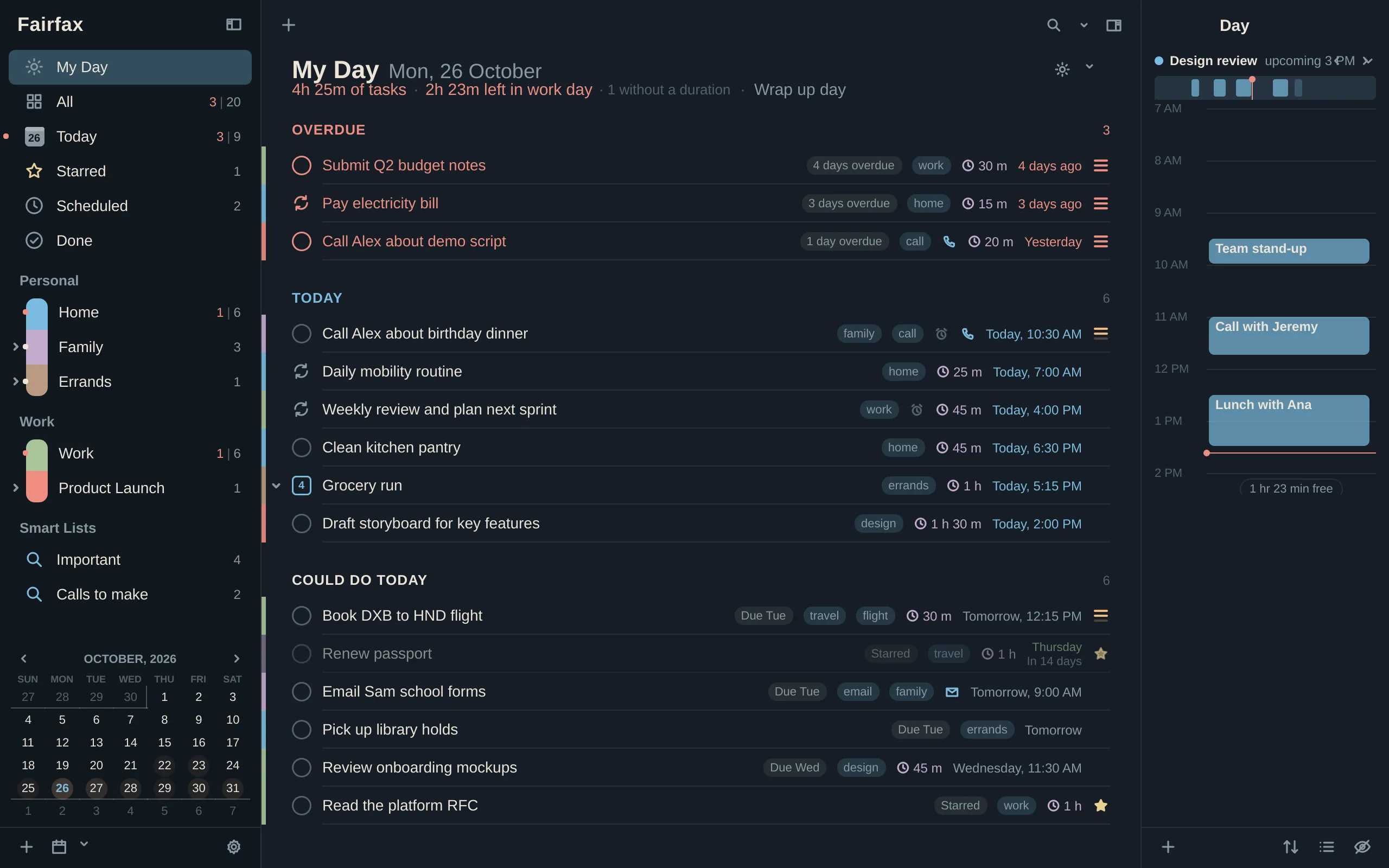
My Day is a daily plan. Open it in the morning and it shows what needs your attention today, how much time that adds up to, and what you could pick up if you have room. Open it at the end of the day and it helps you close things off.
There is nothing to maintain. My Day is built from the dates your tasks already have. It is not a separate list you have to fill in and clear out, which also means it survives every sync.
Open My Day
- Click My Day, the first item in the sidebar, above All.
- Or press Ctrl+Shift+P.
- Or, from a terminal, run
fairfax ctl mydayto open it in the running window.
On a brand-new database, My Day is what Fairfax opens on. You can change that under Default view in Settings → General, and you can switch My Day off entirely in Settings → Tasks. With My Day off, its sidebar item, its shortcut and its prompts are gone, and nothing else changes.
If you like, Fairfax can offer to open My Day the first time you launch it each day. Turn on Offer to plan on the first launch of the day in Settings → Tasks. The prompt asks Open My Day or Not today.
What you see
My Day has three sections. Empty ones are hidden. A day with nothing at all says Nothing planned for today.
| Section | What is in it |
|---|---|
| Overdue | Everything past its due date, oldest first. Each row says how late it is ("1 day overdue", "3 days overdue"). |
| Today | What is already planned: tasks due today, and tasks you have started. |
| Could do today | Suggestions, each with the reason it is here. |
The reasons in Could do today tell you why Fairfax thought of a task:
- Starred: you starred it.
- Starts today: its start date is today.
- Due Fri (or whichever day): it is due in the next two days.
- Alert 14:30: it has an alert today.
- Still working on: its start date has passed and you have not finished it (when Today does not already count it; see Include 'Still Working On' tasks in Today in Settings).
A long Overdue or Could do today section shows the first few rows and a more row. Click it to see the rest.
Today and Could do today are ordered by priority (highest first), then by due date, then by how long they take.
Where plans come from
My Day uses the dates you already set, so there is no extra step:
- A task due today is planned for today.
- A task overdue is in the Overdue section until you finish it or move it.
- A task you have already started, but not finished, is planned (unless you turn that off in Settings → Today & Lists).
- A starred task, a task starting today, a task due tomorrow or the day after, or a task with an alert today is suggested.
Lists you have kept out of Today (in Edit List…) stay out of My Day too. Tasks inside a project are planned on their own, while a checklist shows as a single row. Completed tasks never appear.
The header: how much is there, and how much time is left
Next to the date, My Day shows a line like:
4h 25m of tasks · 4h 45m left in work day
The first number is the total of the durations of everything in Today. The second is the free time left in your work day: from now (or your work day's start, if that is later) to your work day's end, minus any calendar events and any tasks you have time-blocked. After hours the line reads work day over.
If some tasks have no duration, the line adds "· 3 without a duration". Those tasks count for zero, so the first number is a minimum. The line turns amber when your tasks fill more than 85% of the time left, and red when they no longer fit. That is your cue to move something to tomorrow.
Your work day is set in Settings → Tasks: Work day from … to … (9:00 AM to 5:00 PM by default). Add a calendar in Settings → Calendar and its events count as busy time.
Plan the day
Select a task (or several) and use these keys while My Day is open:
| Key | What it does | What it changes |
|---|---|---|
| a | Add to today | Sets the due date to today if there is none or it is in the past. If the deadline is later, it keeps that and sets the start date to today instead. |
| b | Block out time | Puts the task in the next free slot today (30 minutes if it has no duration), and gives it a due time and duration. |
| r | Remove from today | Pushes today's date to tomorrow. |
| h | Hide for today | Hides a suggestion until tomorrow. It does not change the task. |
You can also drag a task onto the day timeline at the right to block out time at a chosen hour. On a narrow window, drop it onto the Day Bar above the list instead. These keys only work in My Day. In an ordinary list, the bare keys do nothing. You can rebind them in Settings → Shortcuts, under My Day.
Every one of these changes is undoable with Ctrl+Z.
Wrap up the day
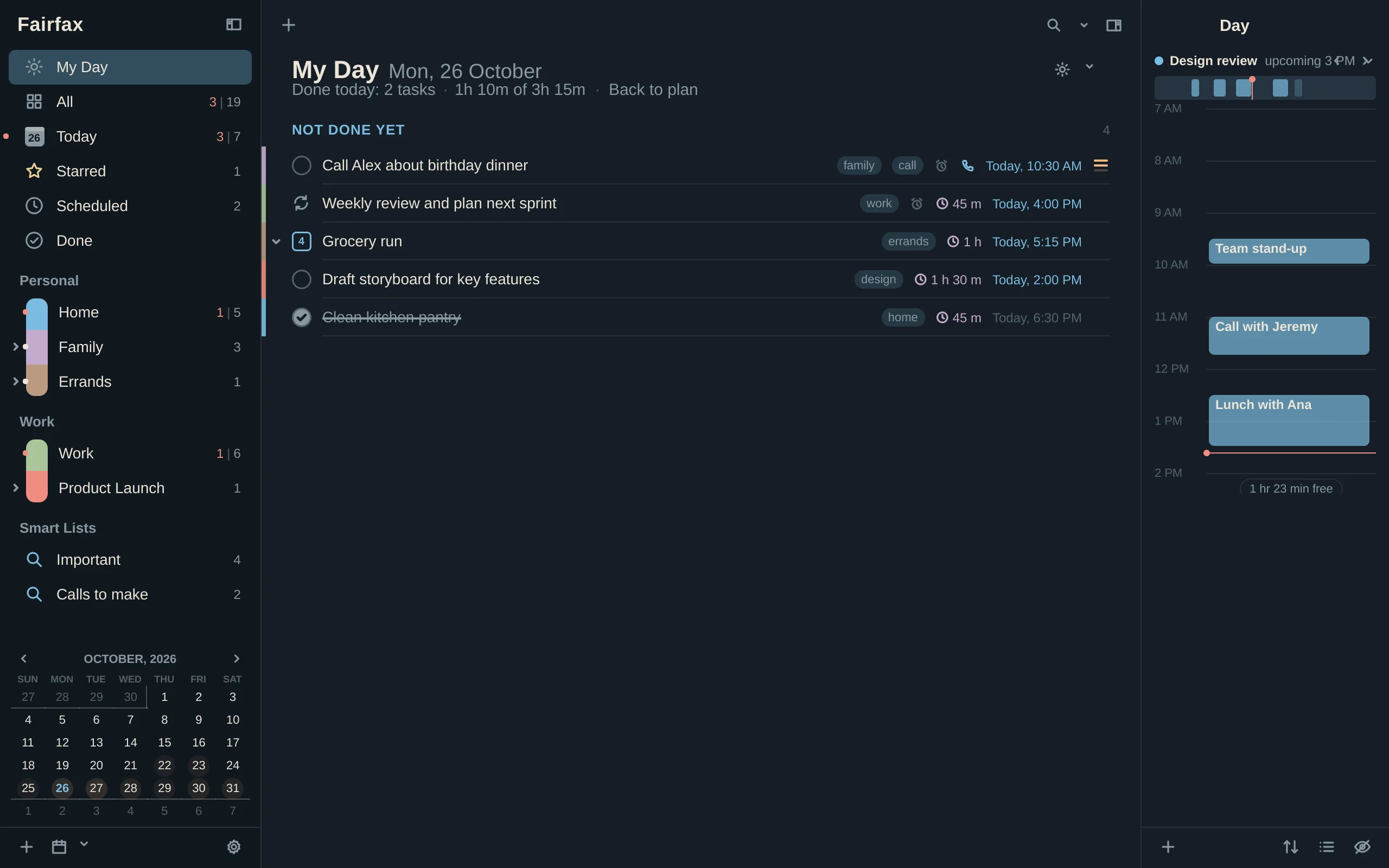
At the end of the day, Wrap up day helps you decide what to do with what is left. Click Wrap up day, the link at the end of the numbers line under My Day's title, at any time. It also opens by itself if you open My Day after your work day has ended.
The review shows:
- A Not done yet section: everything that was planned for today and is still open.
- A summary in the header, such as Done today: 3 tasks · 1h 10m of 4h 25m. It counts the tasks you completed today, how much time they took, and how much you had planned. Tasks you abandoned are not counted: they were closed, not done.
Go through the list and decide each one with a single key:
| Key | What it does |
|---|---|
| y | Move it to tomorrow |
| w | Abandon it ("won't do"): it is closed without being done, and is not counted in Done today |
| d | Pick another date |
| r | Take it off today (today's date moves to tomorrow) |
| Return | Leave the review |
When you are done, press Return or click Back to plan, the link at the end of the summary line, to return to the plan. Leaving My Day also closes the review.
A gentle reminder
If you would like a nudge, turn on Remind me to review the day when work ends in Settings → Tasks. At the end of your work day, Fairfax shows a Review your day notification. Click it to open the review. It appears once a day, and only while Fairfax is running.
Tips
- Keep durations on your tasks. They are what make the header useful.
- Use a start date for things you do not want to see yet. They arrive in Could do today on their day.
- Treat red as information, not failure. Press r on one or two tasks and the day fits again.
- See Repeats and alerts for tasks that come back by themselves.