Fairfax is a keyboard-friendly task manager for Linux (and, with a little more effort, macOS and Windows). It keeps your tasks in a file on your own computer. It can sync them between machines through a private git repository, a folder, or a server you choose. Nothing leaves your machine unless you set that up.
This chapter takes you from nothing to your first task.
Install Fairfax
The quickest way is one line in a terminal:
curl -fsSL https://github.com/jrimmer/fairfax/releases/latest/download/install.sh | bash
It downloads the latest release, checks every file against its published checksum, and installs it.
- On Arch Linux (including Omarchy) it installs the pacman package. It uses
sudoonly for the finalpacman -Ustep. If you are already root and have nosudo, it says so and carries on. - On any other Linux it installs an AppImage under
~/.local. No root needed. - On Omarchy it also runs
fairfax setup omarchyfor you after a fresh install (see below). Add--no-setupto skip that:… | bash -s -- --no-setup.
You are welcome to read the script before you run it. It is short, and it is published next to the release.
Other ways to install
The latest release also has plain x86_64 packages:
| File | For | Install with |
|---|---|---|
fairfax-x86_64.pkg.tar.zst |
Arch | sudo pacman -U {file} |
fairfax-amd64.deb |
Debian 13, Ubuntu 25.04 and later | sudo apt install ./{file} |
fairfax-x86_64.rpm |
Fedora 41 and later | sudo dnf install ./{file} |
fairfax-x86_64.AppImage |
Most Linux from about 2022 on | chmod +x {file} && ./{file} |
fairfax-linux-x86_64.tar.gz |
Anywhere | Unpack it and run fairfax-linux-x86_64/bin/fairfax |
On ARM you will need to build from source unless the release lists ARM files. macOS and Windows builds are best effort. They work, but they are not packaged as neatly, and a few Linux-only extras (the Omarchy setup, the Waybar badge) are not there.
To remove Fairfax, run the installer again with --uninstall.
Try it without risking anything
fairfax --demo opens a throwaway copy filled with sample tasks. It never
touches your real tasks, which makes it a good place to practise.
Set up Omarchy
If you installed with the one-liner on Omarchy, this is already done. Otherwise, or if you want a different Quick Entry key, run:
fairfax setup omarchy
It adds three things, each in a clearly marked place:
- A Quick Entry key. Press Super+Shift+T anywhere to jot down a task
without switching windows. To choose another key, run
fairfax setup omarchy --key "SUPER + ALT + T". Fairfax refuses a key that is already taken. Quick Entry and Settings open floating and centred. - Menu entries. Press Super+Space and choose Fairfax for New Task, Today, Find a Task and Settings.
- Background start. Fairfax starts quietly when you sign in. That is how alarms reach you with the window closed, and how Quick Entry appears instantly.
Hyprland's part lives in ~/.config/hypr/fairfax.lua, loaded by one line in
hyprland.lua. The menu entries are a marked block in
~/.config/omarchy/extensions/omarchy-menu.jsonc. Both files are backed up
before they change. To undo everything, run fairfax setup omarchy --remove.
If you lay out floating windows in thirds on Hyprland, Fairfax opens into the free third. You can turn that off in Settings.
On another desktop
There is no setup command, but the pieces are easy to do by hand:
- Bind a key in your desktop's settings to the command
fairfax --quick. That opens Quick Entry. - Add
fairfax --backgroundto your autostart so alarms arrive with the window closed. - On macOS use Shortcuts.app or Raycast for the key. On Windows give a shortcut to
fairfax.exe --quicka hotkey in its properties.
Open Fairfax for the first time
Open it from the launcher (Super+Space, then type "Fairfax"). A new database opens on My Day, a plan for today. With no tasks yet it says Nothing planned for today. That is fine. A new database starts with two lists, Home and Work, in a group called Personal. Click Home, press Ctrl+N and type your first task.
Your tasks live in ~/.local/share/fairfax/fairfax.db. If you ever need to open a
different file, start Fairfax with --db PATH.
The three panels
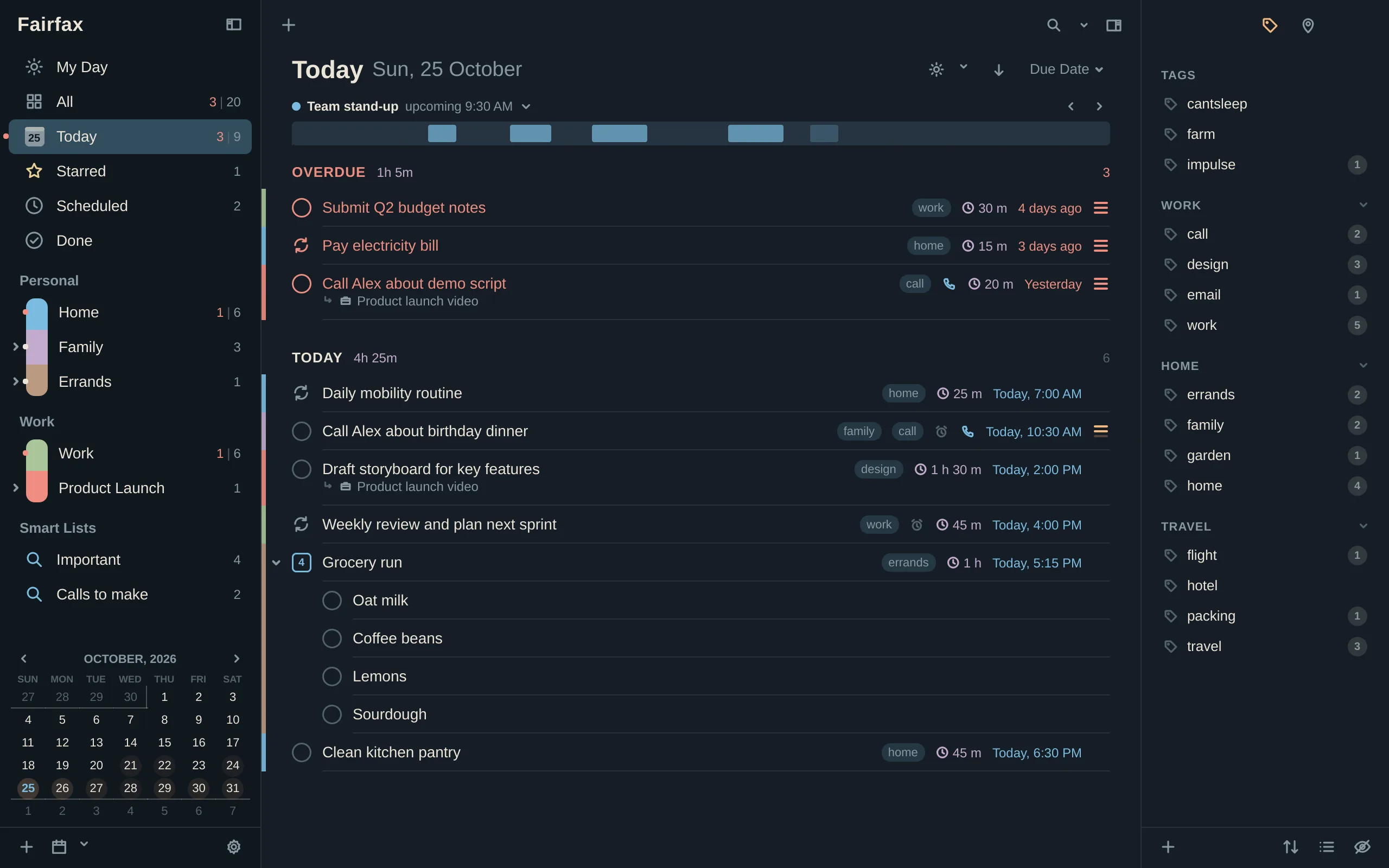
The window has three panels, left to right.
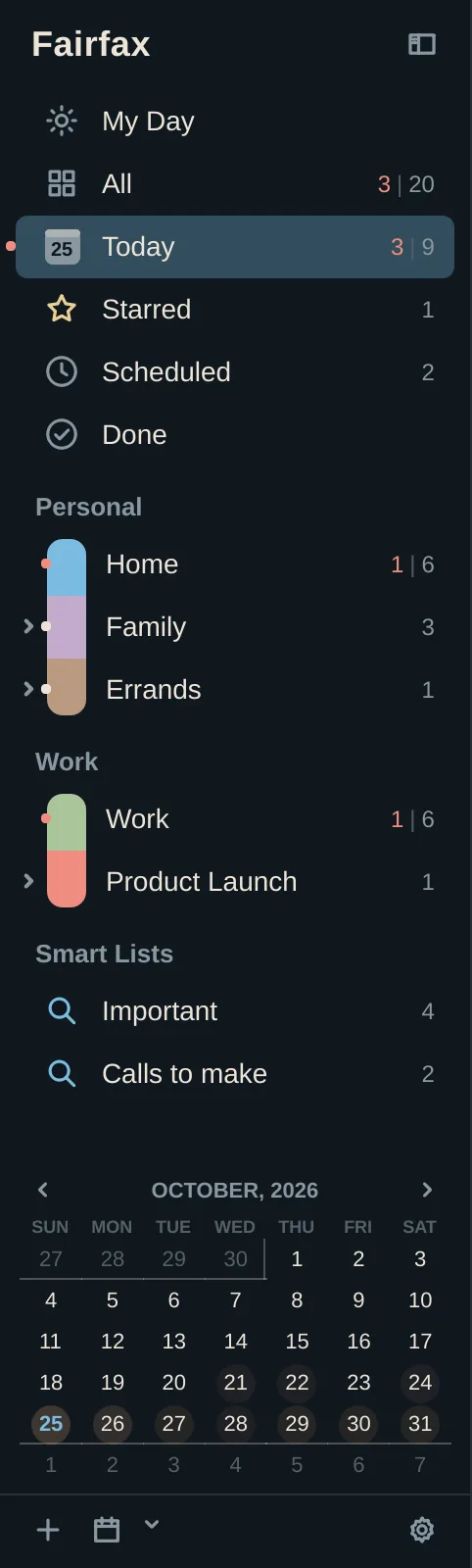
- Lists (left). Everything you can look at: My Day, an optional Inbox, the five focus lists (All, Today, Starred, Scheduled, Done), your own lists grouped under headings, and your Smart Lists. A small calendar sits under the lists, and the footer shows when sync last worked.
- Tasks (middle). The tasks in whatever you picked on the left. This is where you spend most of your time.
- Tags (right). Your tags, grouped. Click a tag to filter the middle panel to it. A second tab holds your places.
You can hide the side panels when you want more room. Ctrl+Alt+← shows or hides Lists, and Ctrl+Alt+→ shows or hides Tags. Fairfax remembers your choice.
Your first five minutes
- Press Ctrl+N, type "Call the dentist tomorrow at 9am", and press Return. Fairfax picks the date and time out of your words.
- Press Ctrl+2 to look at Today, or Ctrl+4 to see Scheduled.
- Select a task with the arrow keys. Press Space for a closer look, Return to edit it, or Ctrl+. to complete it.
- Press ? at any time to see every shortcut.
Chapter 2 explains each of these properly.
Moving in from another app
If your tasks live somewhere else today, you don't have to retype them. Fairfax can bring in TickTick, Things, OmniFocus, iCalendar files, and task databases. Moving in walks through each one, and every import can be undone.
Where to go next
- The basics covers adding, editing and finishing tasks.
- My Day shows how to plan a day in a minute.
- Sync and backups is worth reading before you rely on Fairfax on more than one computer.