Your tasks live on your computer. If you use Fairfax on one machine, you may never need sync. If you use it on two, or want your phone to see your tasks, this chapter shows the options. It also covers backups, which are worth setting up either way.
Open Settings → Sync (Ctrl+,, then Sync) to begin.
How sync works
You can use any of the five ways below, and you can use several at once. A few things hold for all of them:
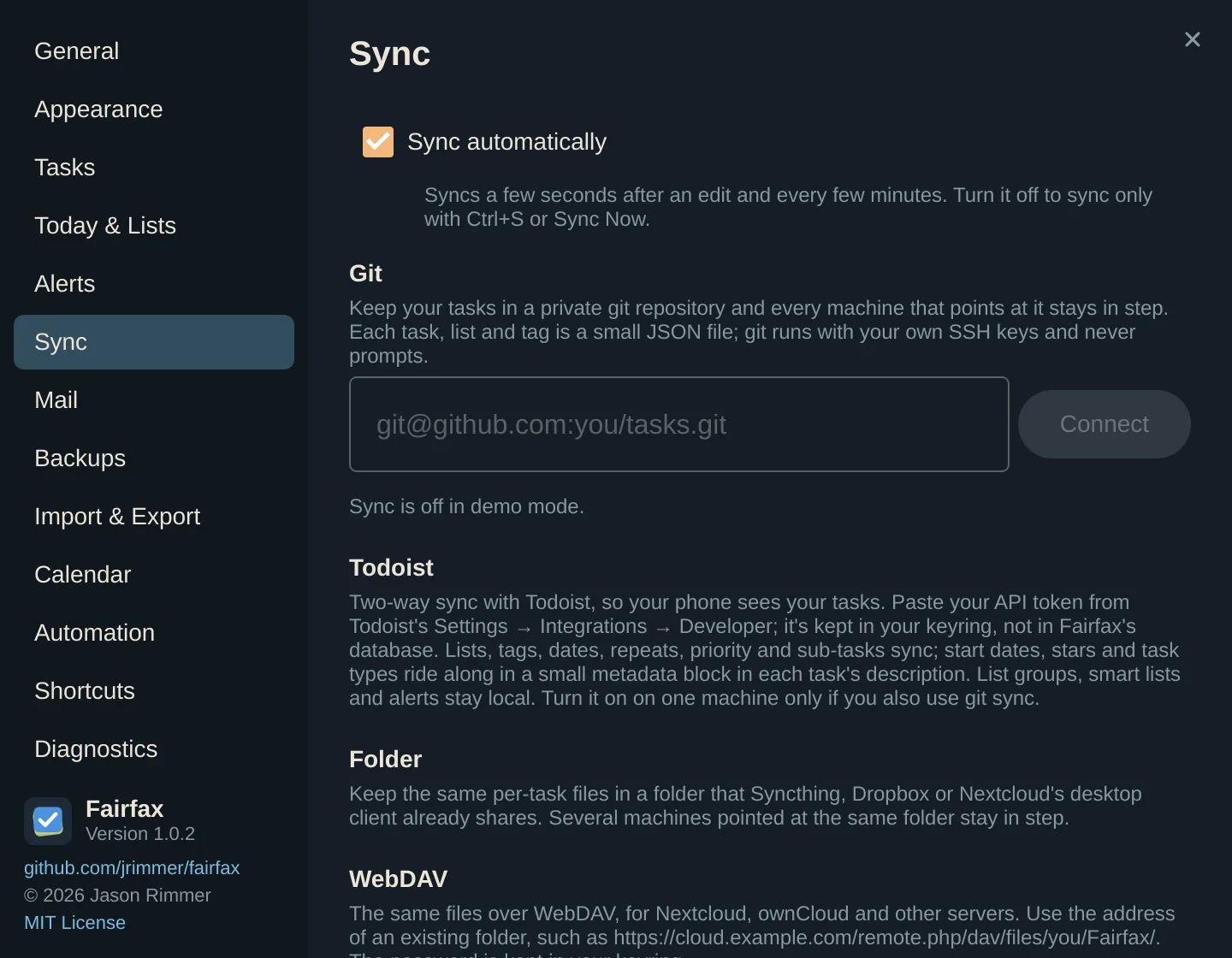
- Sync automatically is on by default. Fairfax syncs a few seconds after you change something, and again every few minutes. Turn it off to sync only when you press Ctrl+S (or click the sync button at the bottom of the sidebar).
- The sidebar's footer shows when sync last worked. A warning mark appears if something went wrong, and the Sync pane says what.
- When two machines changed the same task, the newest edit wins, field by field: abandoning a task on one machine and renaming it on another keeps both.
- Sync is off in demo mode.
Git: one private repository
This is the best choice if you are comfortable with git. Every machine points at the same repository and stays in step. Each task, list and tag is stored as a small JSON file, so a repository's history is a readable record of your tasks.
- Make a repository and keep it private. It will hold your task titles and notes.
- In Settings → Sync, under Git, paste its address (for example
git@github.com:you/tasks.git) and click Connect. - Click Sync Now to try it. The status line says how it went and when it last synced.
Git runs with your own SSH keys and never prompts, so make sure the computer can already reach the repository without a password prompt. Change switches to a different repository, and Disconnect stops syncing without deleting anything. The pane also shows the working copy, the folder on your computer where the repository is kept.
A plain folder
If you already use Syncthing, Dropbox or Nextcloud's desktop app, point Fairfax at a folder inside it. Fairfax writes the same per-task files there, and every machine looking at that folder stays in step.
Click Choose Folder… under Folder, pick one, and sync. Change… picks another, and Disconnect stops.
WebDAV
For Nextcloud, ownCloud and other WebDAV servers. It keeps the same files as the
folder option, but over the network. Enter the address of an existing folder (for
Nextcloud, something like https://cloud.example.com/remote.php/dav/files/you/Fairfax/),
your user name and your password, then click Connect. The password is kept in
your system keyring, not in Fairfax's database.
CalDAV
CalDAV syncs your tasks as VTODO items in a calendar account on Nextcloud, Fastmail and other servers. That lets other apps on the same account see them.
- Choose Nextcloud, Fastmail or Other under Account, then fill in the server address, your user name and an app password (not your account password; make one in your server's security settings).
- Click Connect.
- Under Lists and calendars, map each Fairfax list to one of the server's task calendars. Choose Don't sync to leave a list out of CalDAV, or New calendar to make one on the server. Create calendars for new lists does that for you automatically for lists that do not have one.
Calendars that exist on the server but have no matching list arrive as new lists in
an account group. Dates, repeats, priorities, tags, sub-tasks and alerts sync. Other
apps' extra data on a task (properties Fairfax does not know about) is kept and sent
back unchanged, so another app on the same server does not lose its own information.
An abandoned task is saved as a cancelled to-do (STATUS:CANCELLED), and a task that
another app cancels arrives abandoned; a task you completed stays completed. A wrong
password shows in the status line. Disconnect forgets the account and its
links without deleting a single task on either side.
Apple's iCloud Reminders created on iOS 13 or later are not stored in CalDAV, so they cannot be reached this way.
Todoist
For two-way sync with Todoist, so your phone sees your tasks.
- In Todoist, go to Settings → Integrations → Developer and copy your API token.
- Paste it into Fairfax under Todoist and click Connect. The token is kept in your keyring.
Lists, tags, dates, repeats, priority and sub-tasks sync. Start dates, stars and task
types ride along in a small block in each task's description in Todoist. An abandoned
task is closed in Todoist and gets an abandoned label, which Fairfax on your other
computers reads back as abandoned (the label is never shown as a tag). List groups,
Smart Lists and alerts stay on your computer. If you also use git sync, turn Todoist
on for one machine only.
The first time two sides meet
The first time a machine meets a folder, server or repository that already holds tasks, Fairfax asks how to begin:
- Merge keeps the newest version of every task on both sides.
- Replace Local throws away this machine's tasks and takes the other side's (a backup is made first).
- Replace Server overwrites the other side with this machine's tasks.
If you are not sure, choose Merge.
Keep one list on this computer only
Right-click a list and choose Don't Sync This List. The list and its tasks stay on this computer, and every sync method skips them. This suits a private list, or one you only use here. In the CalDAV mapping, choosing Don't sync for a list skips it for CalDAV only, and the other methods keep syncing it.
For programs: the sync format
If you want to write a program that reads or writes the same files Fairfax syncs, the format is documented at jasonrimmer.com/fairfax/sync-format.
Backups
Fairfax makes a backup of your whole database for you, and it takes one before it does anything risky such as an import or a restore.
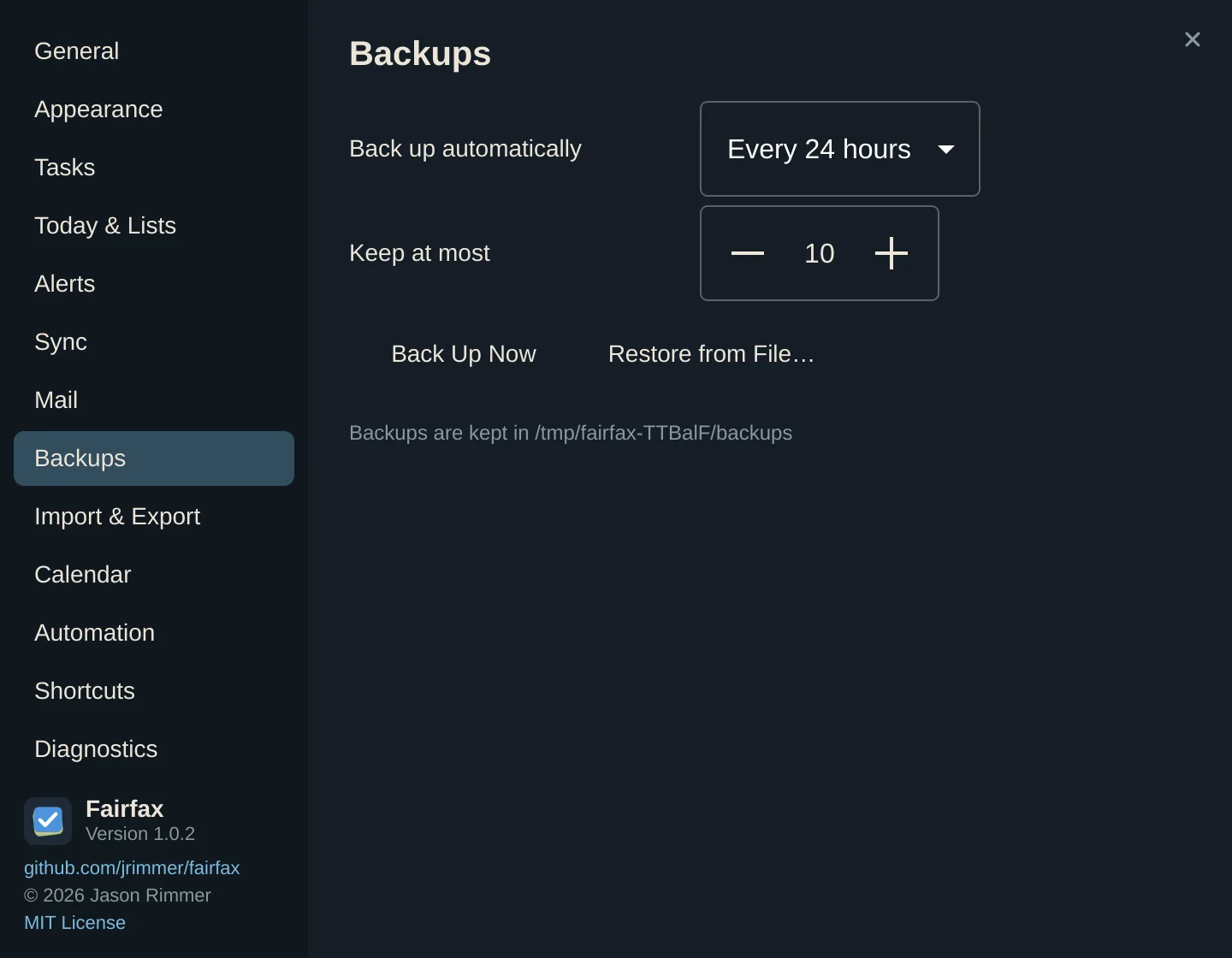
Settings → Backups has:
- Back up automatically: Never, Every 24 hours (the default) or Every 48 hours.
- Keep at most: how many to keep (10 by default). Older ones are deleted.
- Back Up Now: make one right away.
- Restore from File…: restore from a backup file somewhere else.
Backups live in a backups folder next to your database, normally
~/.local/share/fairfax/backups. The pane shows the exact folder.
Each backup in the list has four buttons:
- Restore replaces everything with that backup, after you confirm. A fresh backup of the current state is taken first, so you can go back.
- Lists… restores only the lists you choose, with their tasks, tags, alerts and attachments, as new lists in a group called Restored. Nothing you have is touched. This is the way to recover one list you deleted by mistake.
- Save a Copy… saves the backup file wherever you like, for instance onto a USB drive.
- Delete removes it.
Backups are not sync. They are for getting back to an earlier state, and they sit on the same computer. Use Save a Copy… to keep one somewhere safe.