Some tasks arrive as email: a bill, a message from a teammate, a note you send to yourself from your phone. Fairfax can turn those messages into tasks for you.
Fairfax has no server of its own, so it cannot host an address you email directly. Instead it watches a mailbox you already own and picks out only the messages meant for it. The rest of that mailbox is never fetched, flagged or moved. The mailbox can be your everyday one.
Mail is off until you turn it on in Settings → Mail.
How a message becomes a task
- The subject becomes the title. Leading
Re:,Fwd:,AW:and friends are trimmed. - The plain-text body becomes the notes, up to 10,000 characters. Attachments and HTML formatting are dropped. A message with only HTML is turned into text.
- If the body has lines numbered
1.2.3., they become a checklist. - A signature ends the body:
--, "Sent from my iPhone", "Get Outlook for …". - A message becomes one task, once. Fairfax remembers each message, so fetching it again, or fetching it on two computers that sync, never makes a second task, even if you deleted the first.
To find everything that arrived this way, search for type: capturedmail.
Filing instructions in the subject
You can tell Fairfax where a task goes and when it matters by adding instructions to the subject. They are taken out of the title.
| Instruction | Does |
|---|---|
start(tomorrow) |
Sets the start date |
due(friday 3pm) |
Sets the due date and time |
priority(!!!) |
Sets the priority (!, !! or !!!) |
list(Work) |
Files it in the Work list |
tag(home, diy) |
Adds tags |
action(call, 0793273373) |
Sets an action: call, message, url, visit, google or email |
For example, the subject Fix the gate due(saturday) tag(home) priority(!!) becomes a task
called "Fix the gate", due Saturday, tagged home, medium priority.
If a list does not exist, the task goes to your destination list instead. An instruction Fairfax does not recognise stays in the title.
If you would like to type dates and tags the way you do in Quick Entry
(Call Sam tomorrow 3pm #home !!), turn on Read dates and tags in the subject.
Gmail
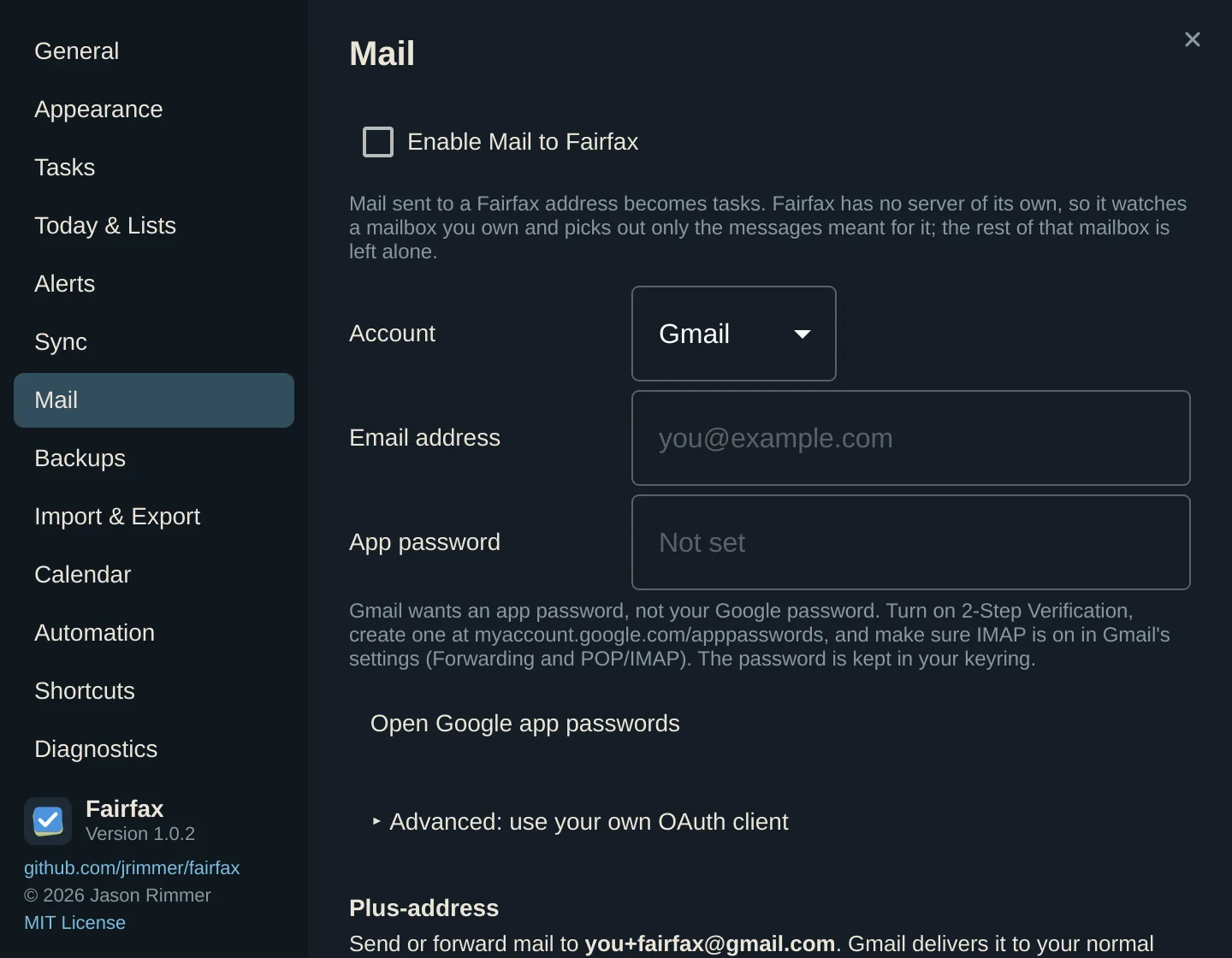
Gmail is the default. You need an app password, not your Google password.
- Turn on 2-Step Verification for your Google account.
- Make an app password at myaccount.google.com/apppasswords. The pane has an Open Google app passwords button.
- Check that IMAP is on in Gmail's settings (Forwarding and POP/IMAP).
- In Settings → Mail, choose Gmail, enter your address, paste the app password (it is stored in your keyring, never in the database), and turn on Enable Mail to Fairfax.
The plus-address filter
You pick out the mail meant for Fairfax with a plus-address. Gmail delivers mail sent
to you+fairfax@gmail.com to your normal inbox, as if it were you@gmail.com. Fairfax
takes only the mail sent to that address, files it under a Fairfax label and out of
your inbox, and leaves everything else alone.
So: send or forward a message to you+fairfax@gmail.com, and a task appears. The pane
shows your exact address, with a Copy address button. Save it as a contact on your
phone and "email it to myself" becomes a one-tap capture.
Your own Google sign-in (advanced)
An app password is the easy route. If you prefer Google sign-in, Fairfax ships no Google client of its own. You create one in your own Google Cloud project:
- Create an OAuth client of type Desktop app.
- Publish its consent screen to Production, or Google ends the sign-in after seven days.
- Download its
client_secret.json. - In Settings → Mail, open Advanced: use your own OAuth client, choose Import client JSON…, then Sign in with Google.
Outlook.com and Microsoft 365
Outlook has no sign-in that needs no setup, so the pane offers options that need none first:
- Forward it. Add an Outlook rule that redirects the mail you choose to your Gmail plus-address, or to any other mailbox you connect here.
- Use DavMail. DavMail (in the AUR) is a small
program on your computer that makes Outlook look like an ordinary IMAP server.
Set it up, then click Use DavMail in Fairfax. It fills in
127.0.0.1, port 1143 and no encryption. - Your own client ID. Advanced. Register an app in Microsoft Entra (App
registrations) as a public client with the redirect
http://localhostand the delegatedIMAP.AccessAsUser.Allpermission. Paste its Application (client) ID under Use your own client ID, then click Sign in with Microsoft. Work and school accounts may need an administrator to allow it.
Any other IMAP server
For Fastmail, Dovecot, ProtonMail Bridge and the like, choose Other. Fill in the
Server, Port, Security (TLS, STARTTLS or None), your User name and
Password. None is only for a bridge on your own computer (127.0.0.1).
Choose which mail, and what happens next
Under Which mail:
- Only mail sent to takes messages addressed to that address (To, Cc, Delivered-To or X-Original-To). For Gmail it starts as your plus-address.
- Only mail labelled takes messages with a Gmail label (or an IMAP keyword on other servers).
- Folder is where to look (
INBOXby default).
If both filters are empty, every message in the folder becomes a task, and the pane warns you in red. Be careful.
Under What happens:
- After importing: Move to a folder or label (made for you if missing; Gmail's default is Fairfax), Mark as read, or Leave as is. Messages that already became tasks get the same treatment. Leave as is is safe: Fairfax remembers what it has already read.
- New tasks go to: a list (the Inbox by default).
- Check every: how often to look, in minutes. This only matters when the server cannot tell Fairfax about new mail. Most can, and then new mail arrives at once.
The Status area has Fetch Now and a line saying how it went. Ctrl+S and the sidebar's sync button also fetch mail. Messages over 25 MB are skipped, and Fairfax says so.
While Fairfax is running, it watches the mailbox in the background, so your tasks arrive even with the window closed.
From a script: fairfax import-mail
You do not have to let Fairfax read a mailbox. If you already use Sieve, procmail, fetchmail or ProtonMail Bridge, hand messages to Fairfax yourself:
fairfax import-mail message.eml              # or several files
some-fetcher | fairfax import-mail --list Work
fairfax import-mail --maildir ~/Mail/fairfax  # everything in new/, moved to cur/ as seen
fairfax import-mail --natural-language ...    # also read "tomorrow 3pm #home !!" in the subject
It prints a line for each message (Added "Title" to List or Skipped: duplicate).
It exits with 0 when everything was added or was a duplicate, 1 for a message it could
not read, and 2 for bad usage. It works while the app is open, and the new tasks appear
within a couple of seconds.
You can also drag a mail message (an .eml file) onto a task, or onto empty space in
the task list. Dropped on a task, it becomes that task's action (or goes in its notes, if
it already has an action). Dropped on empty space, it makes a new task titled with the
subject.