You do not have to start from nothing. Fairfax can bring in tasks from other apps and files. This chapter covers each one, and how to take your tasks back out again.
Before you start
Open Settings → Import & Export (Ctrl+,, then Import & Export). Every importer has a button there. Pick the one that matches your file and choose the file.
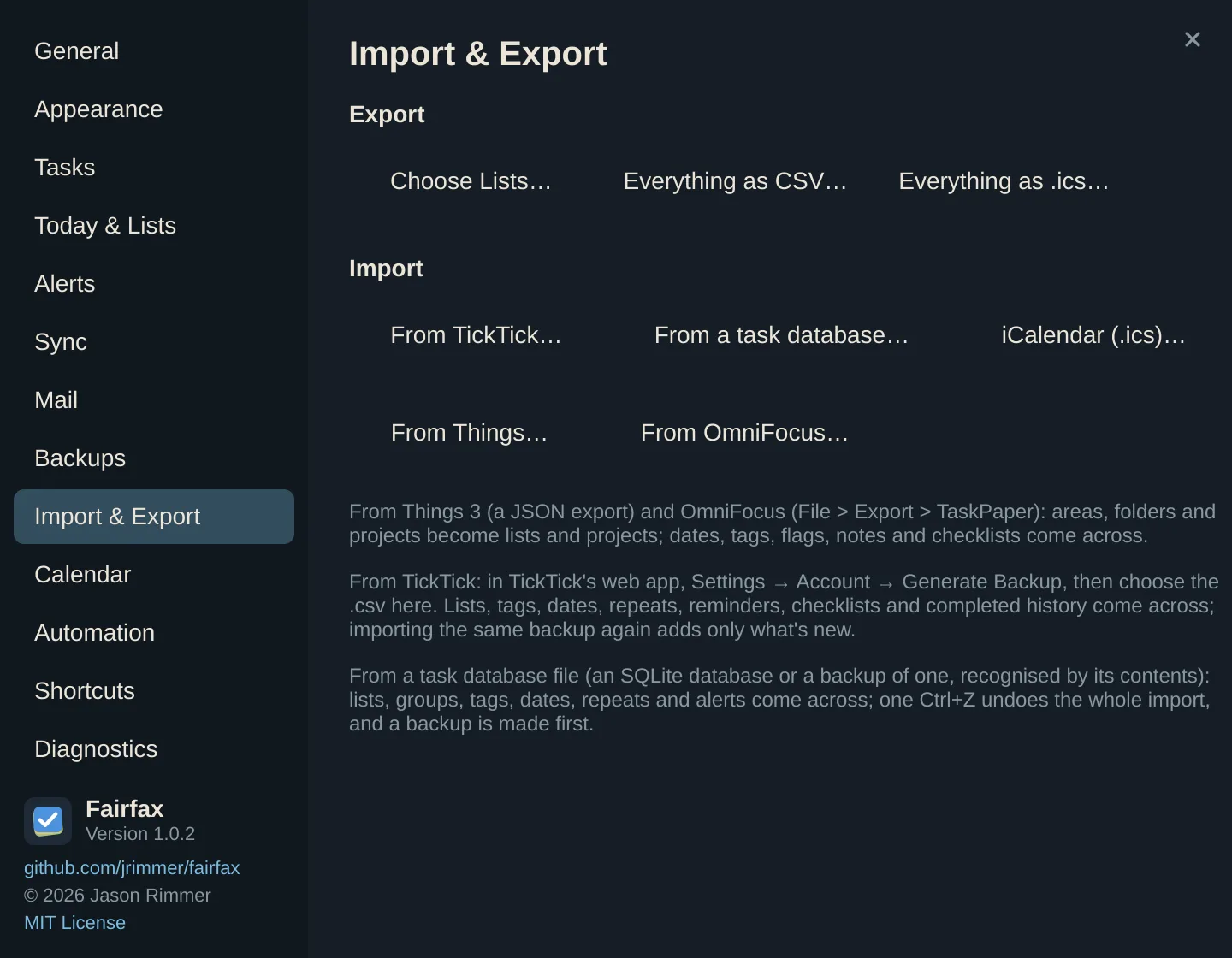
Importing from the Settings window is gentle on purpose:
- Fairfax takes a backup first, so you can always go back.
- The whole import is one step. If you do not like the result, press Ctrl+Z and it is as though it never happened.
- A message tells you how many tasks and lists came across.
Importing the same TickTick backup a second time adds only what is new, so you can repeat it safely while you are settling in.
You can also import from a terminal with fairfax import FILE. Fairfax recognises the
kind of file by looking inside it. Like the Settings route, the terminal command takes a
backup first and prints its name. It cannot be undone with Ctrl+Z, though; to go back,
restore that backup in Settings → Backups. If the file cannot
be imported, no backup is kept and nothing changes.
From TickTick
- In TickTick's web app, go to Settings → Account → Generate Backup and download
the backup, a
.csvfile. - In Fairfax, choose From TickTick… and pick the file. Or, from a terminal:
fairfax import ~/Downloads/TickTick-backup-*.csv.
Lists, folders, tags, dates (in each task's own time zone), repeats, reminders, priorities, checklists, sub-tasks, sections and your completed history all come across. Tasks you marked Won't Do come in as abandoned.
From Things
- Get a JSON export of your Things 3 data.
- In Fairfax, choose From Things… and pick the file. Or run
fairfax import things.json.
Areas become lists, projects stay projects, and checklist items stay checklists. Things' "when" becomes the start date and its deadline becomes the due date. Tags, flags and notes come across too, and canceled items come in as abandoned.
From OmniFocus
- In OmniFocus, choose File → Export and pick TaskPaper.
- In Fairfax, choose From OmniFocus… and pick the file. Or run
fairfax import export.taskpaper.
Folders become list groups and projects become lists. Due and defer dates, completion,
estimates, flags and tags come across, and indented lines become notes. Items marked
@dropped come in as abandoned.
From an iCalendar file
Choose iCalendar (.ics)…, or run fairfax import tasks.ics. This works with
anything that can export .ics: calendar apps, to-do apps, some phones. The tasks
(VTODO items) go into your default list.
From a task database or a zipped backup of one
If you have a database file from another task manager, or a backup of one, Fairfax can
read it. Choose From a task database… and pick the file, or run
fairfax import tasks.db.
Fairfax looks inside the file to recognise it. It can be an SQLite database, or a
zipped backup that contains one. In that case Fairfax unpacks the database from the
zip itself. If a zip uses a compression method Fairfax cannot read, it says so, and you
can unzip it yourself and import the .db inside.
Lists, groups, tags, dates, repeats and alerts come across.
Undo an import
Press Ctrl+Z straight after an import from Settings. If you have done other things
since, or you imported from the terminal, go to
Settings → Backups. Every import left a backup
named before-import in the list. Restore it for everything, or use Lists… to
bring back just the lists you want.
One caution: those safety backups count toward Keep at most in the Backups pane. After many imports or restores, the oldest backups are removed to make room.
Export: take your tasks out
Fairfax never traps your tasks. In Settings → Import & Export:
- Choose Lists… opens the export panel. Tick the lists, choose All, Not Done or Done, and pick CSV or iCalendar (.ics). Ctrl+Shift+D opens the same panel from anywhere.
- Everything as CSV… and Everything as .ics… export it all in one go.
More ways out:
- Right-click a task for Export Selection…, Add to Calendar (opens the task as an event in your calendar app), Save as Event (.ics)…, or Email These Tasks….
- Ctrl+P saves the list you are viewing as a PDF (with sections, dates and notes) and opens it so you can print it.
- Drag tasks out of the window into a file manager or a mail composer to hand over an
.icsfile (for one dated task) or a.txt. - Programs can read your tasks directly. See Scripts and agents and the sync format.