Once you have more than a handful of tasks, a little structure helps. This chapter covers projects, checklists, sections, tags, places, and the ways to tidy lists away when you do not need them.
Projects and checklists
Some tasks are really several tasks. Fairfax gives you two shapes for that, and the difference is how the pieces behave.
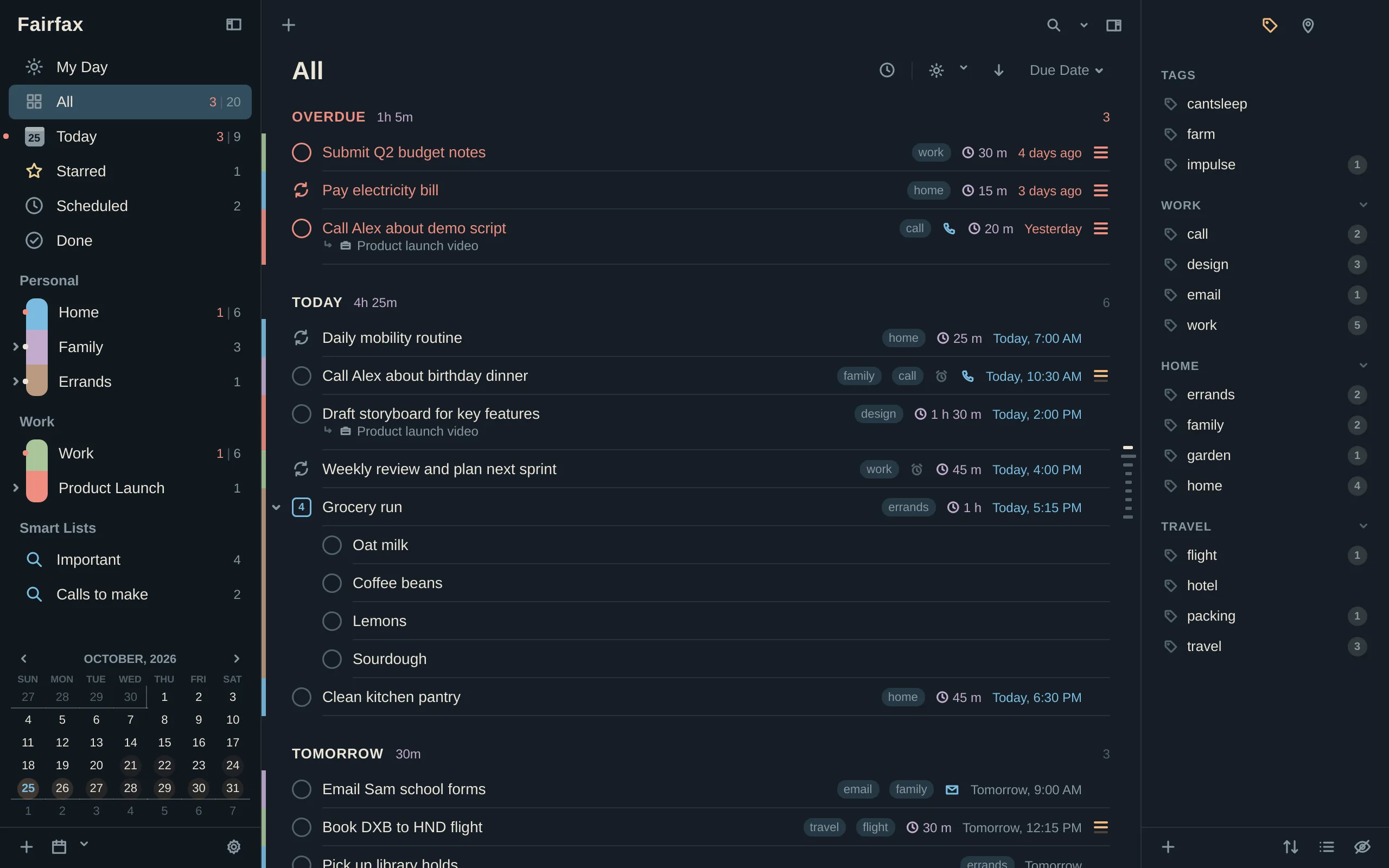
- A project holds tasks that matter on their own. Each task inside keeps its own dates, tags and priority, and appears by itself in Today, Scheduled and the other focus lists. Use a project for "Product launch video", where "Book the studio" has its own deadline.
- A checklist holds items that only make sense together. The items ride along with the checklist and do not show up on their own. Use a checklist for "Grocery run" (oat milk, coffee, lemons) or "Pack for the trip".
A plain sub-task is a task nested under another task.
Make one
| To make | Keyboard | Menu |
|---|---|---|
| A project | Ctrl+Alt+N | Right-click the + button above the tasks, then New Project |
| A checklist | Ctrl+Shift+Alt+N | The same menu, New Checklist |
| A sub-task of the selected task | Alt+N | The same menu, New Sub-Task |
| A project from the selected tasks | Ctrl+Alt+P | Project from Selection |
| A checklist from the selected tasks | Ctrl+Alt+C | Checklist from Selection |
You can also change your mind later. In the task's right-click menu choose To Task, To Project or To Checklist. The keys are Ctrl+Shift+Alt+1, 2 and 3.
In the editor, add sub-tasks by typing one and pressing Return to start the
next. Pasting a list of lines (indented lines or - bullets become sub-tasks)
turns them into tasks in one go. Pasting onto a project nests them under it.
Fold and unfold
Press c to collapse or expand the selected project or checklist. Ctrl+Alt+↑ and Ctrl+Alt+↓ collapse or expand every project in the list.
Look at one project on its own
Press Ctrl+Alt+J (or choose Goto Project in the right-click menu) to see just one project's tasks. Projects also appear in the sidebar under their list.
Sections within a list
When a long list needs headings, use sections. A "Work" list might have This Sprint and Backlog.
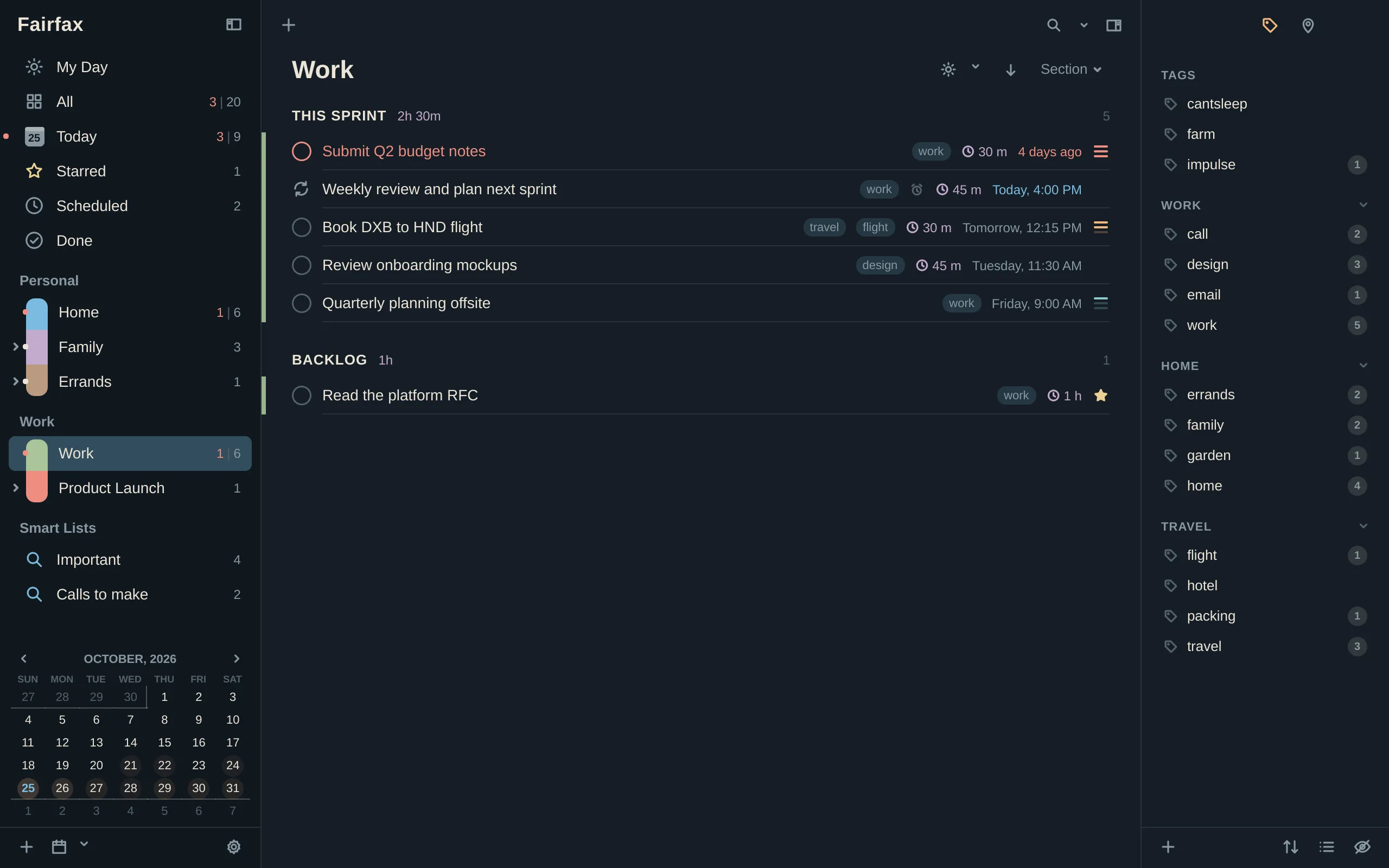
- Add a section: right-click the list and choose New Section, or right-click the + button above the tasks and choose New Section.
- Move tasks into one: drag them onto the heading. Or use Move to Section in a task's right-click menu, with No Section to take it out.
- Rename: double-click the heading.
Set the list's sort to Section to keep the headings in order.
Tags
A tag is a label that cuts across lists. "#call" can be on tasks in Work, Family and Home, and one click gathers them.
- Add tags to a task: press l, pick or type, press Return. Or type
#familyin a task's title. Or Ctrl+R from anywhere. - Remove tags: press Alt+L and choose which to remove, or Ctrl+Alt+R to remove them all.
- Make a tag: in the Tags panel, use New Tag (or Ctrl+Alt+T).
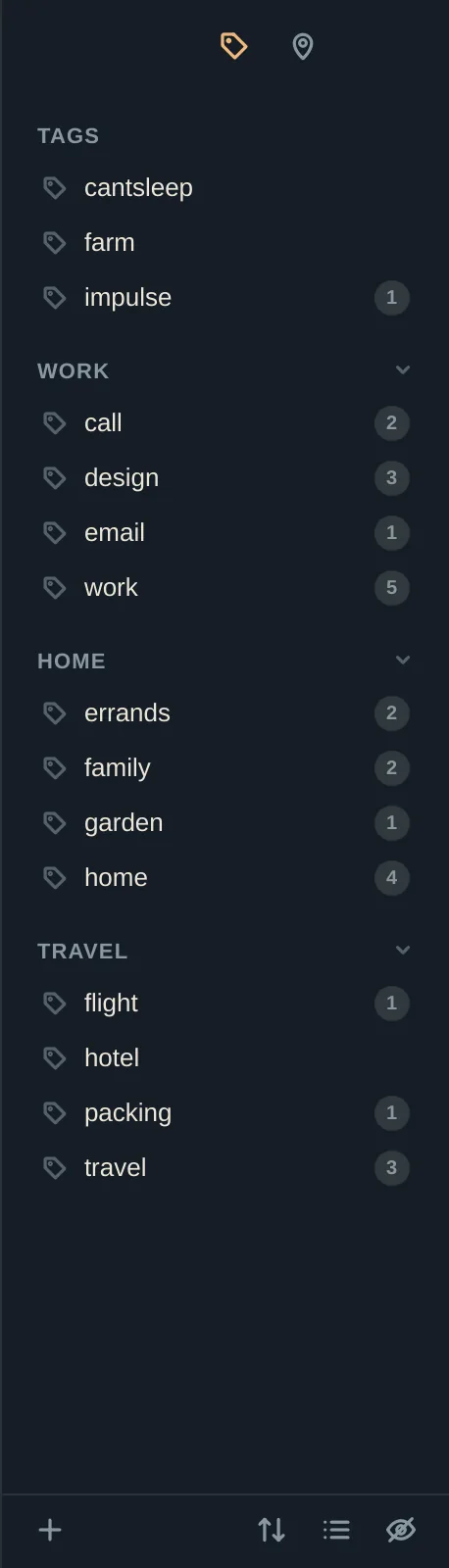
- Filter by a tag: click it in the Tags panel. Click the clear icon at the top to return.
Tag groups
Groups keep a long tag list readable. Make one with New Tag Group (Ctrl+Shift+Alt+T), then drag tags into it, or right-click a tag and choose Move to Group. You can search by group too (see Search).
Pause a tag
Pausing a tag hides every task that carries it, everywhere, until you resume it. It is a good way to put a whole area of life on hold: pause "work" over the holidays, or "garden" in winter.
Right-click the tag in the Tags panel and choose Pause…. A paused tag looks faded, with a pause icon. Choose Resume… to bring the tasks back. If you need to see paused tasks for a moment, press Ctrl+U.
Places
A place (the editor calls it a location) says where a task happens: Home, Office, Supermarket. A place can have an address.
- Add a place to a task: in the editor, click the location button (or press
Ctrl+G) and choose a place, or New Location… to make one. You can also
type
@ Homein a task's title once the place exists. - See all of one place's tasks: switch the Tags panel to its places tab and click one.
- Pause a place: just like a tag, right-click it. Tasks at a paused place are hidden until you resume it.
Colours
Right-click a list, a Smart List or a group to give it a colour from the palette, or pick your own. Color Grouped Lists on a group recolours all its lists together.
Put lists away
Archive a list
Archiving takes a finished list out of your way without deleting anything. Right-click the list and choose Archive. Archived lists wait under Archived at the bottom of the sidebar, where you can open them and Restore them. Their tasks still turn up in Smart Lists and in Done.
Hide a list
Hiding is stronger than archiving. A hidden list vanishes from the sidebar and from All, Today, Smart Lists and searches. Right-click it and choose Hide List, or tick the lists to hide in Settings → Today & Lists. To peek at them during a session, choose Show Hidden Lists in the sidebar's + menu.
Keep a list out of the focus lists
Edit List… has switches for Include in All, Include in Today and Include in Done. Turn one off and that list stays out of that focus list. This suits a shopping list you do not want in your daily view.
Silence a list
Mute Alerts in a list's menu stops alerts for every task in it. Don't Sync This List keeps it on this computer only (see Sync and backups).
Delete
Delete List… removes a list and its tasks. Delete all Tasks… empties it and keeps the list. Both can be undone with Ctrl+Z.
Plan by the calendar
Under the Lists panel is a small calendar. Busy days are shaded (or dotted) so you can see your load at a glance.
- Click a day to show only tasks for that day, or drag across days for a range.
- Hold Alt and click a day to add a task due that day.
- Drop a task on a day to defer it there.
- The arrow beside the calendar button changes its style, shows or hides it, and can shade weekends.
If you add a calendar address in Settings → Calendar, today's events appear in a bar above Today, and you can drag a task onto the bar to block out time for it.
More than one window
Press Ctrl+Alt+W to open another Fairfax window. Each window has its own list,
selection and search, so you can keep Today on one side and a project on the
other. Open windows come back the next time you start Fairfax, and closing a
window forgets it. The launcher's New Window action (or fairfax --new-window)
does the same.
Tasks changed in one window show up in the others at once.